When building MCP servers, you need a way to test your functionality without connecting to a full application. The Python MCP SDK includes a built-in browser-based inspector that lets you debug and test your server in real-time.
Starting the Inspector
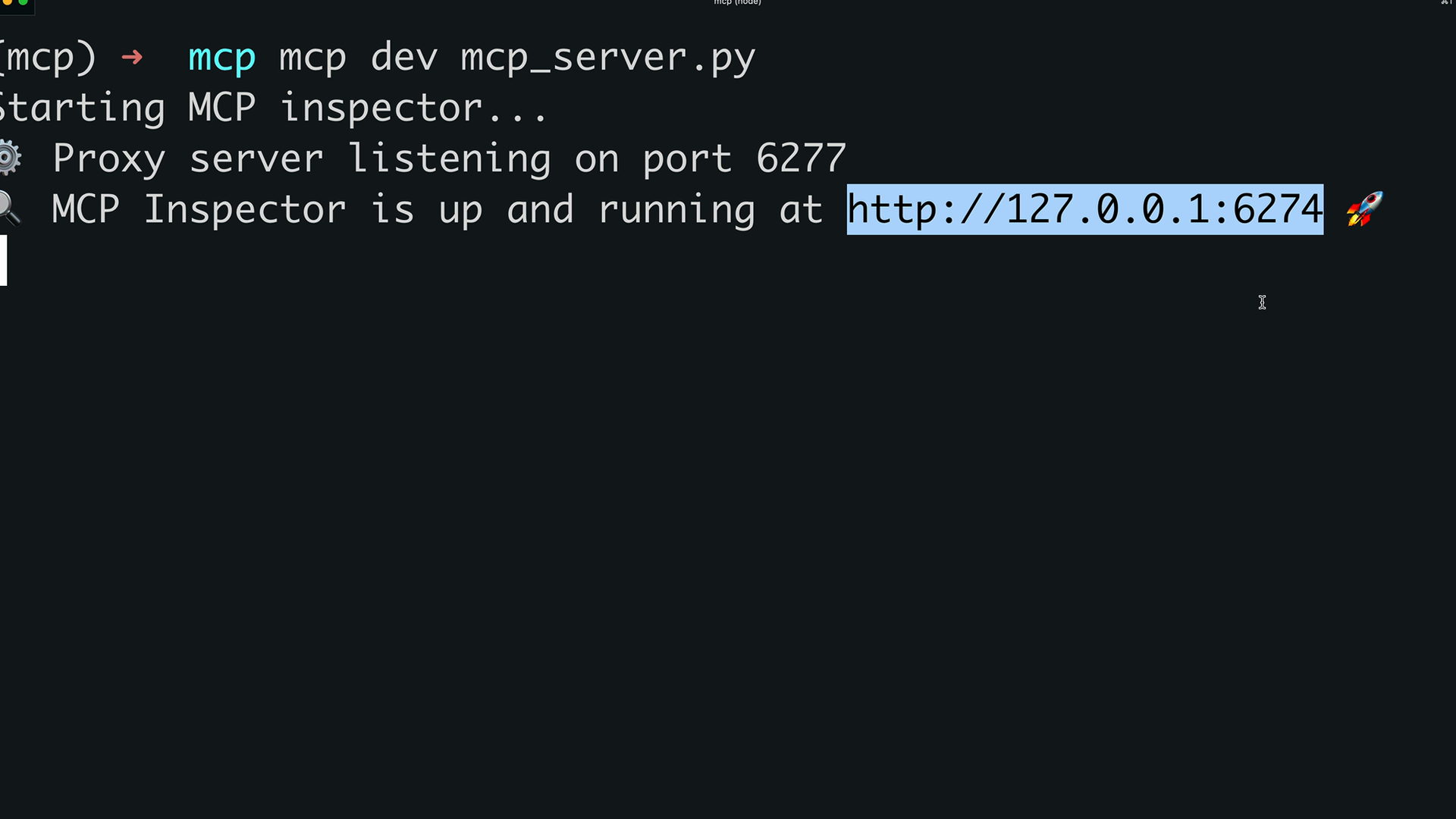
First, make sure your Python environment is activated (check your project's README for the exact command). Then run the inspector with:
mcp dev mcp_server.pyThis starts a development server and gives you a local URL (typically on port 6277) to access the inspector in your browser.
Using the Inspector Interface
The MCP inspector is actively being developed, so the interface may look different when you use it. However, the core functionality remains consistent.
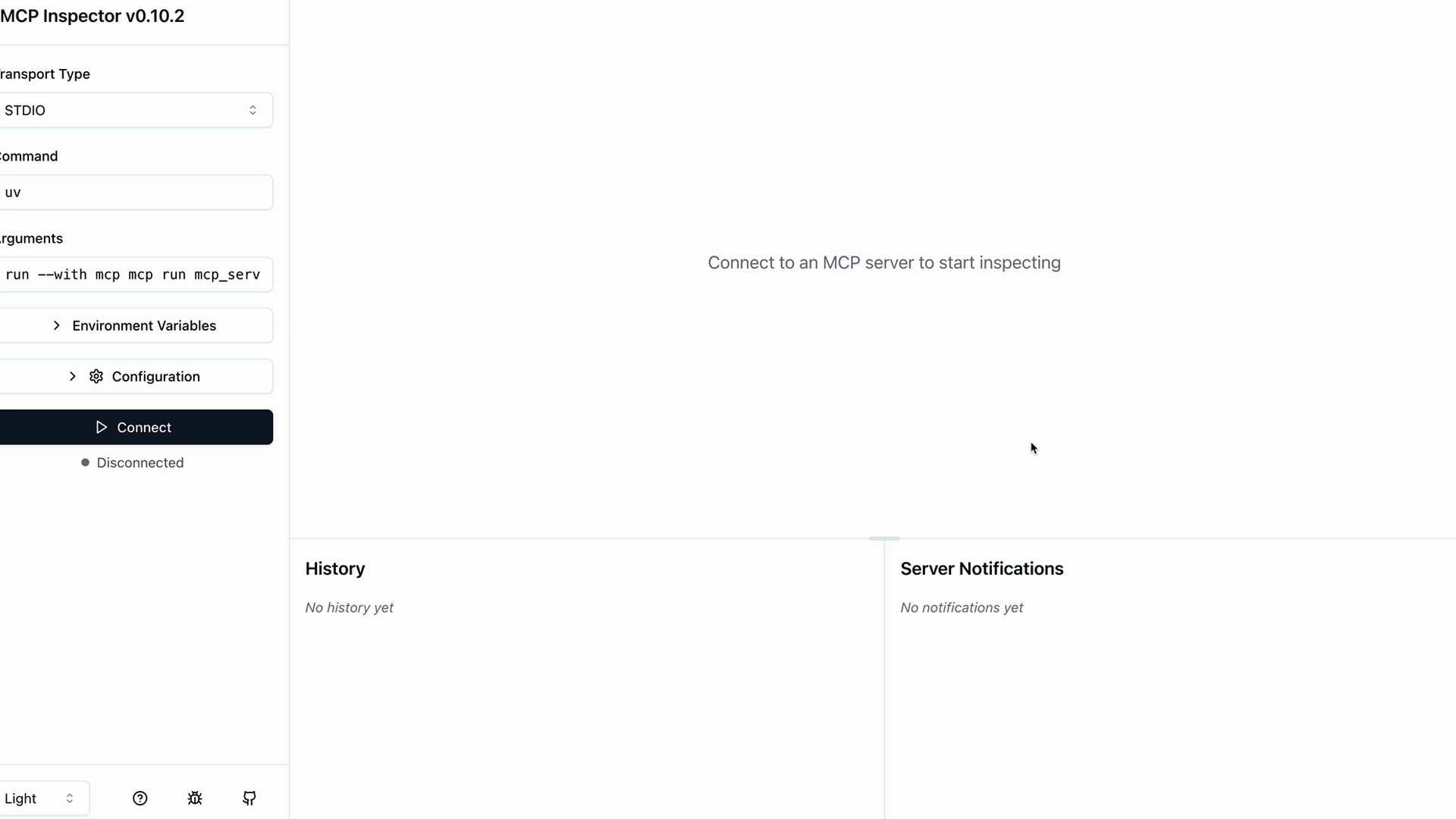
After clicking "Connect" to start your MCP server, you'll see a navigation bar with sections for:
- Resources
- Prompts
- Tools
- Other server capabilities
Testing Your Tools
The Tools section is where you'll spend most of your debugging time. Click "List Tools" to see all the tools your server provides.
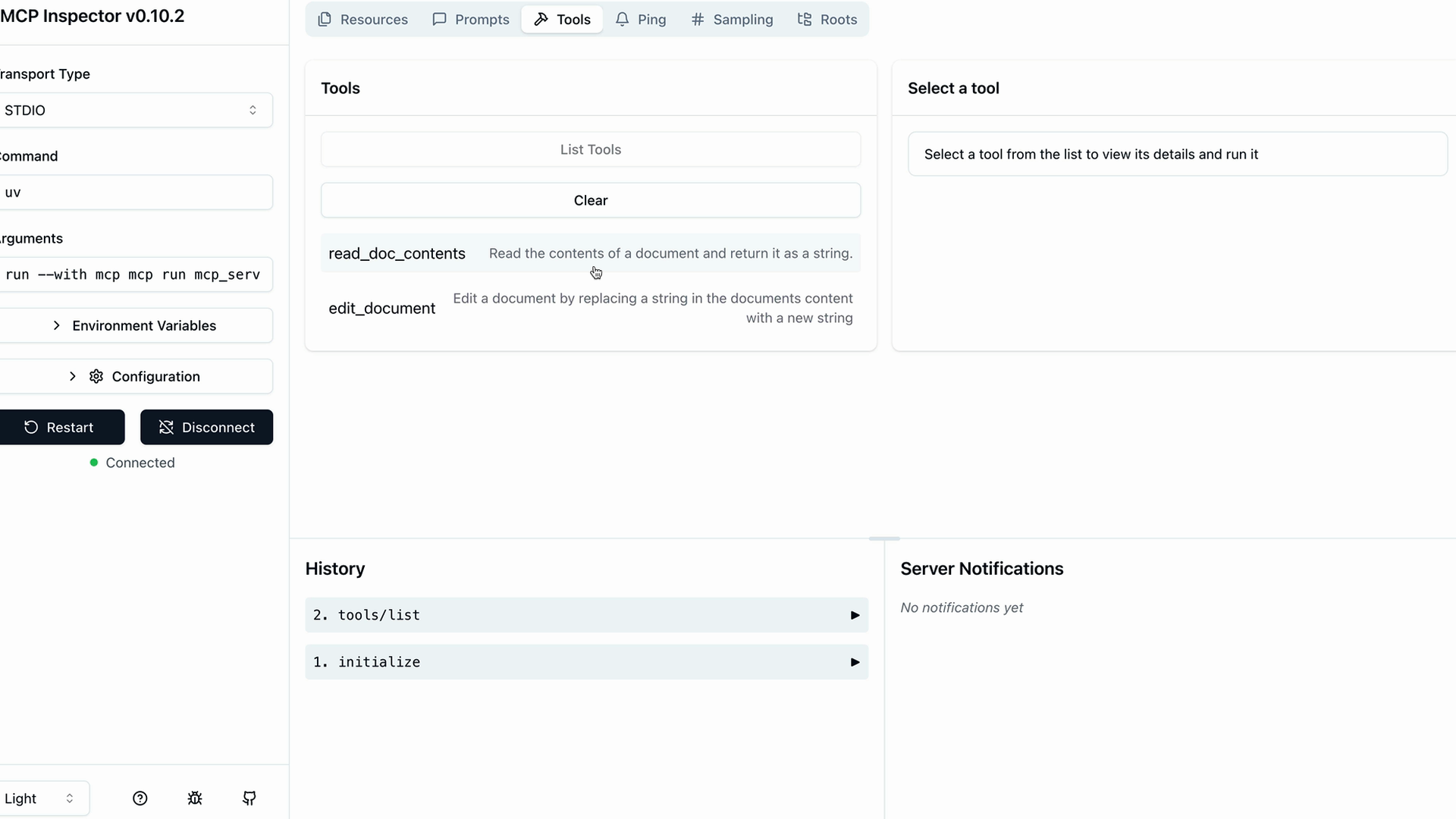
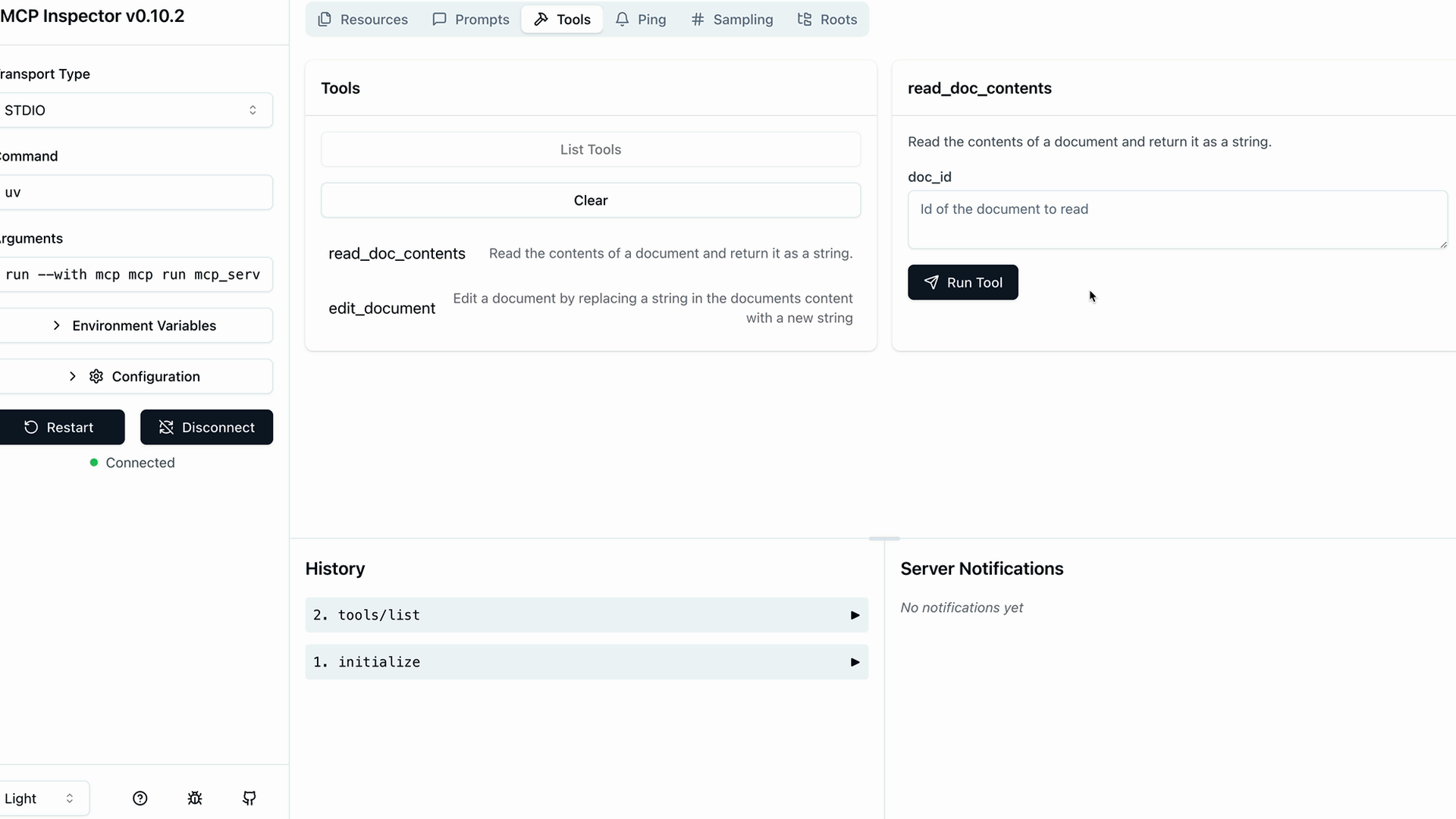
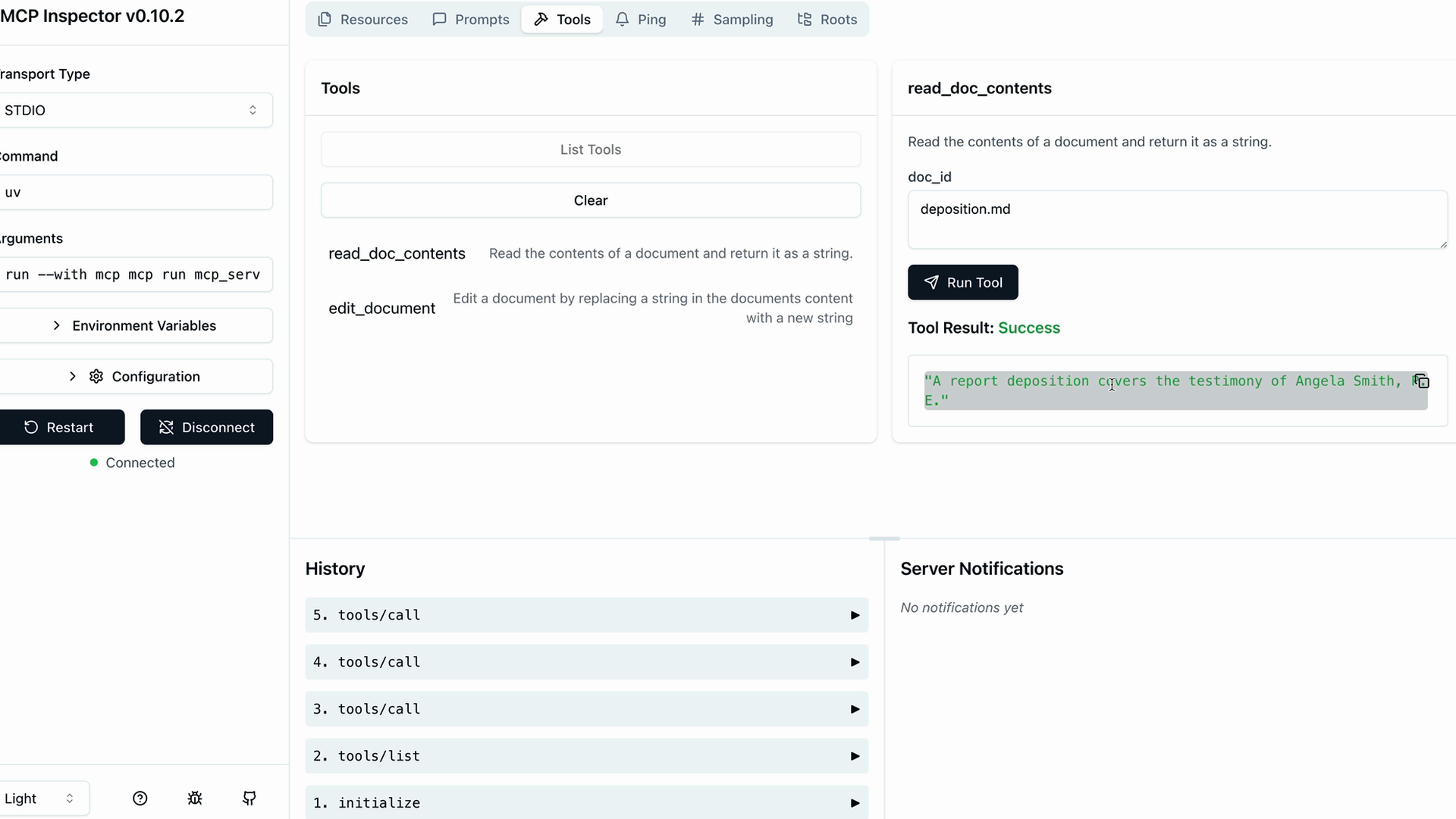
When you select a tool, the right panel shows its details and provides input fields for testing. For example, to test the read_doc_contents tool:
- Select the tool from the list
- Enter a document ID (like "deposition.md")
- Click "Run Tool"
- Check the results for success and expected output
Testing Tool Interactions
You can test multiple tools in sequence to verify they work together correctly. For instance, after using the edit_document tool to modify content:
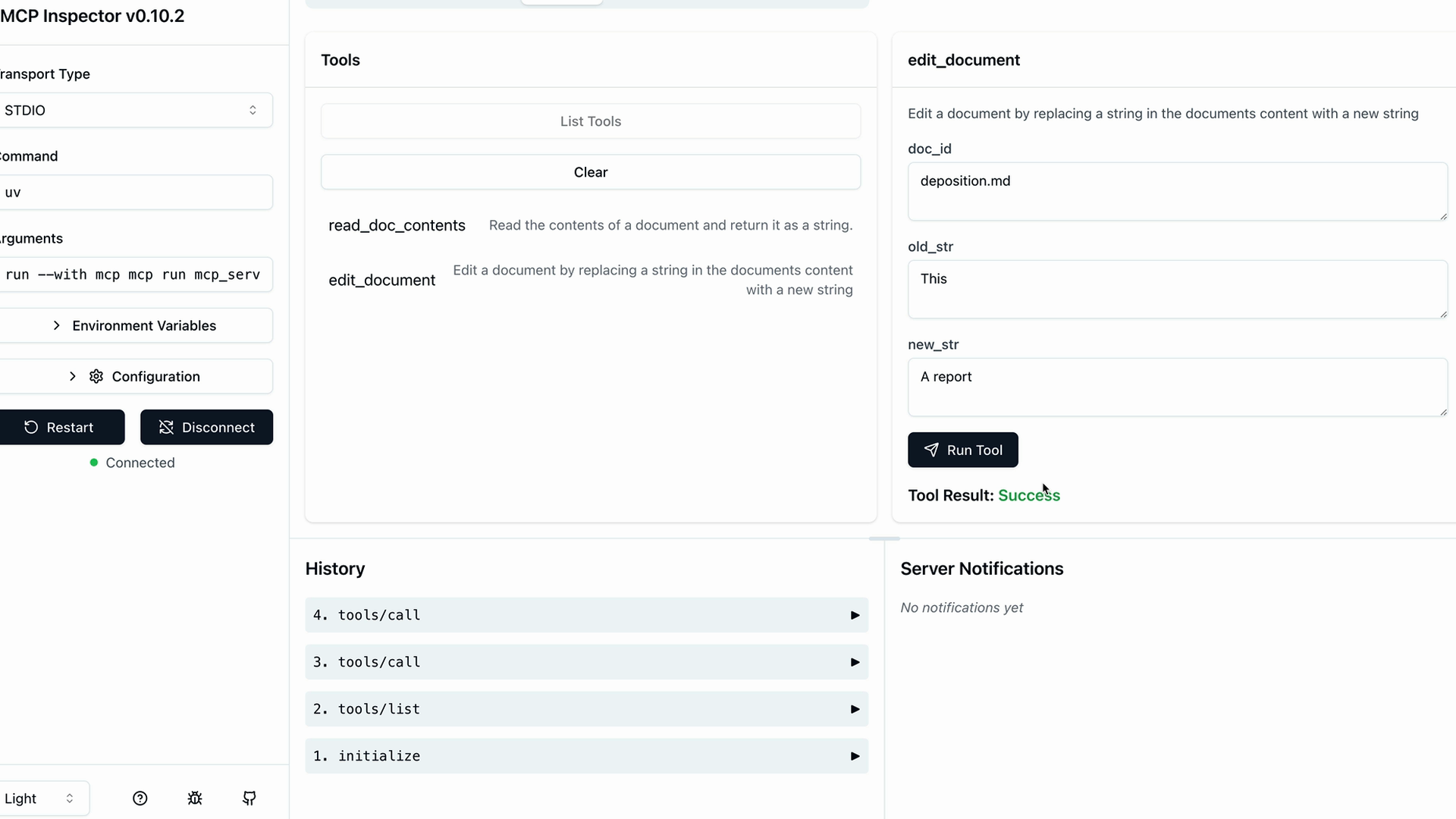
Run the read_doc_contents tool again with the same document ID to confirm your changes were applied:
Development Workflow
The inspector creates an efficient development loop:
- Make changes to your MCP server code
- Test individual tools with various inputs
- Verify tool interactions work as expected
- Debug issues without needing a full application setup
This browser-based testing environment is essential for MCP server development. It saves time by letting you catch issues early and verify functionality before integrating with Claude or other applications.