Now that we've covered the basics of RAG, text chunking, and embeddings, let's walk through the complete RAG pipeline step by step. This detailed example will show you exactly how all the pieces fit together in a real implementation.
Step 1: Chunk Your Source Text
First, we take our source document and break it into manageable chunks. For this example, we'll use two simple text sections:
- Section 1: Medical Research - "This year saw significant strides in our understanding of XDR-47, a 'bug' we have not seen before."
- Section 2: Software Engineering - "This division dedicated significant effort to studying various infection vectors in our distributed systems"
Step 2: Generate Embeddings
Next, we convert each text chunk into numerical embeddings. To make this concept clear, let's imagine we have a perfect embedding model that always returns exactly two numbers, and we know what each number represents:
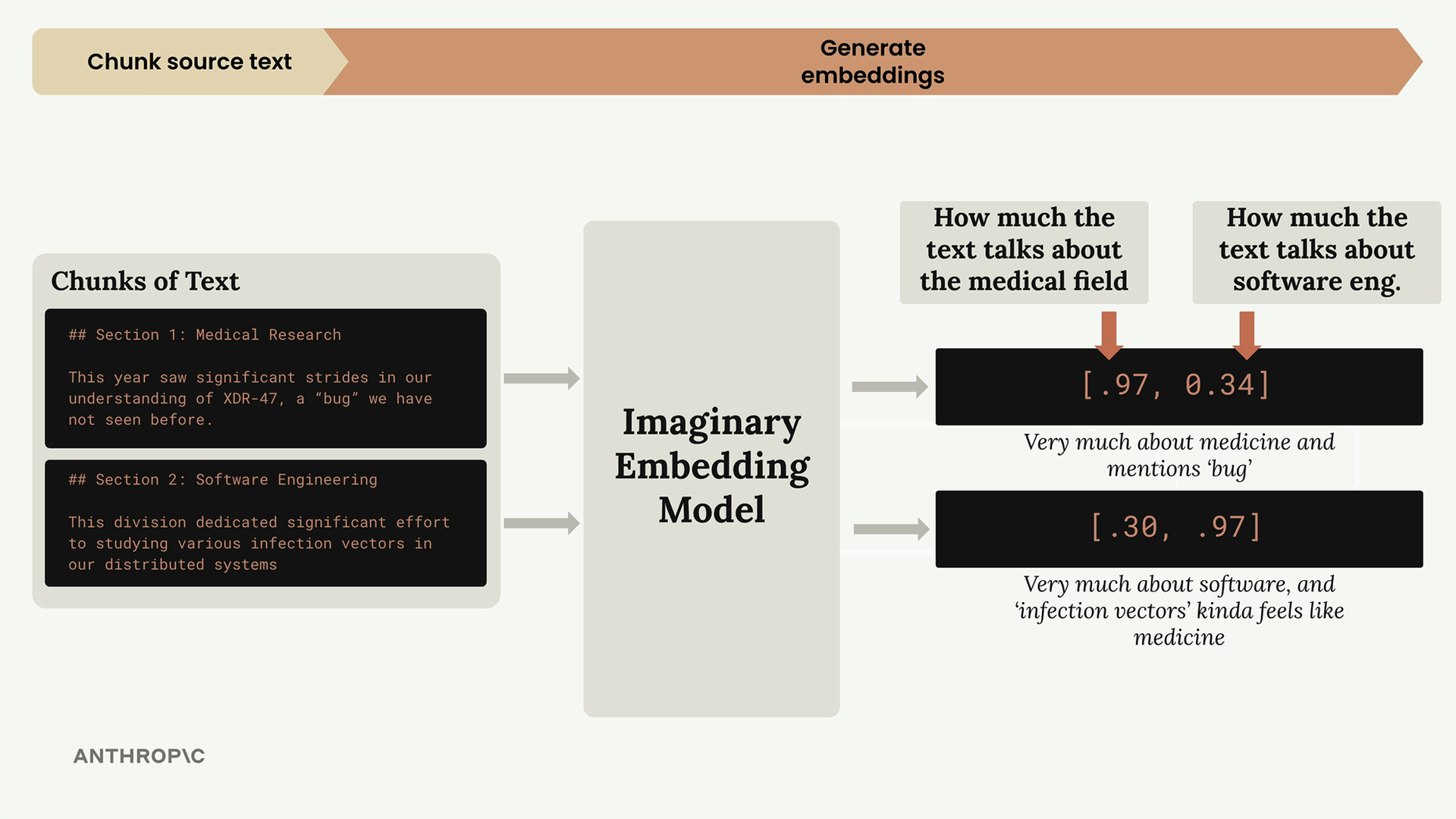
In our imaginary model:
- First number: How much the text talks about the medical field
- Second number: How much the text talks about software engineering
So our medical research section gets an embedding of [0.97, 0.34] - very medical, somewhat software-related due to the word "bug". The software engineering section gets [0.30, 0.97] - very software-focused, but "infection vectors" has medical connotations.
Normalization
Before storing these embeddings, they go through a normalization process that scales each vector to have a magnitude of 1.0. This is typically handled automatically by your embedding API, but it's important to understand that it happens.
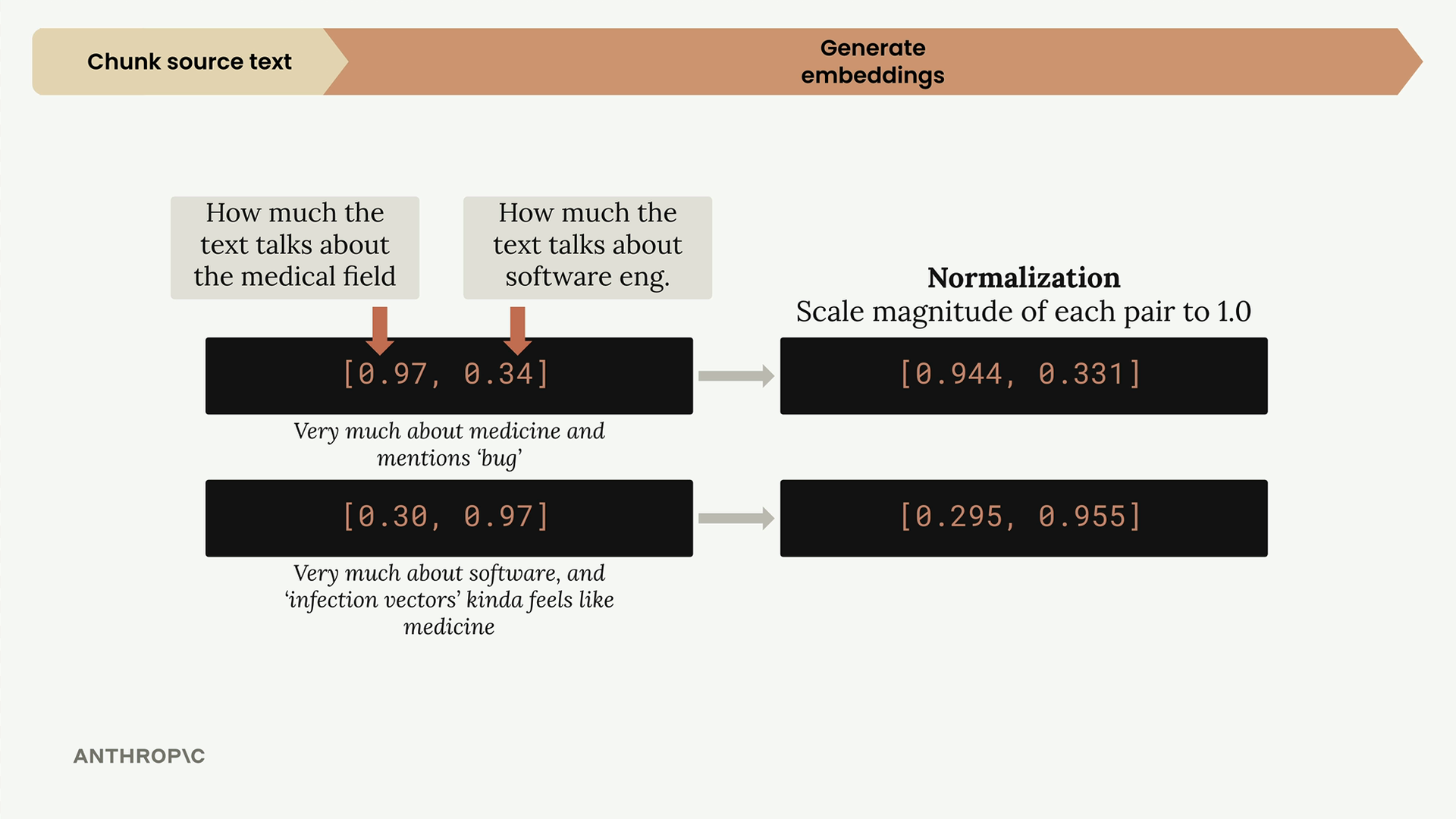
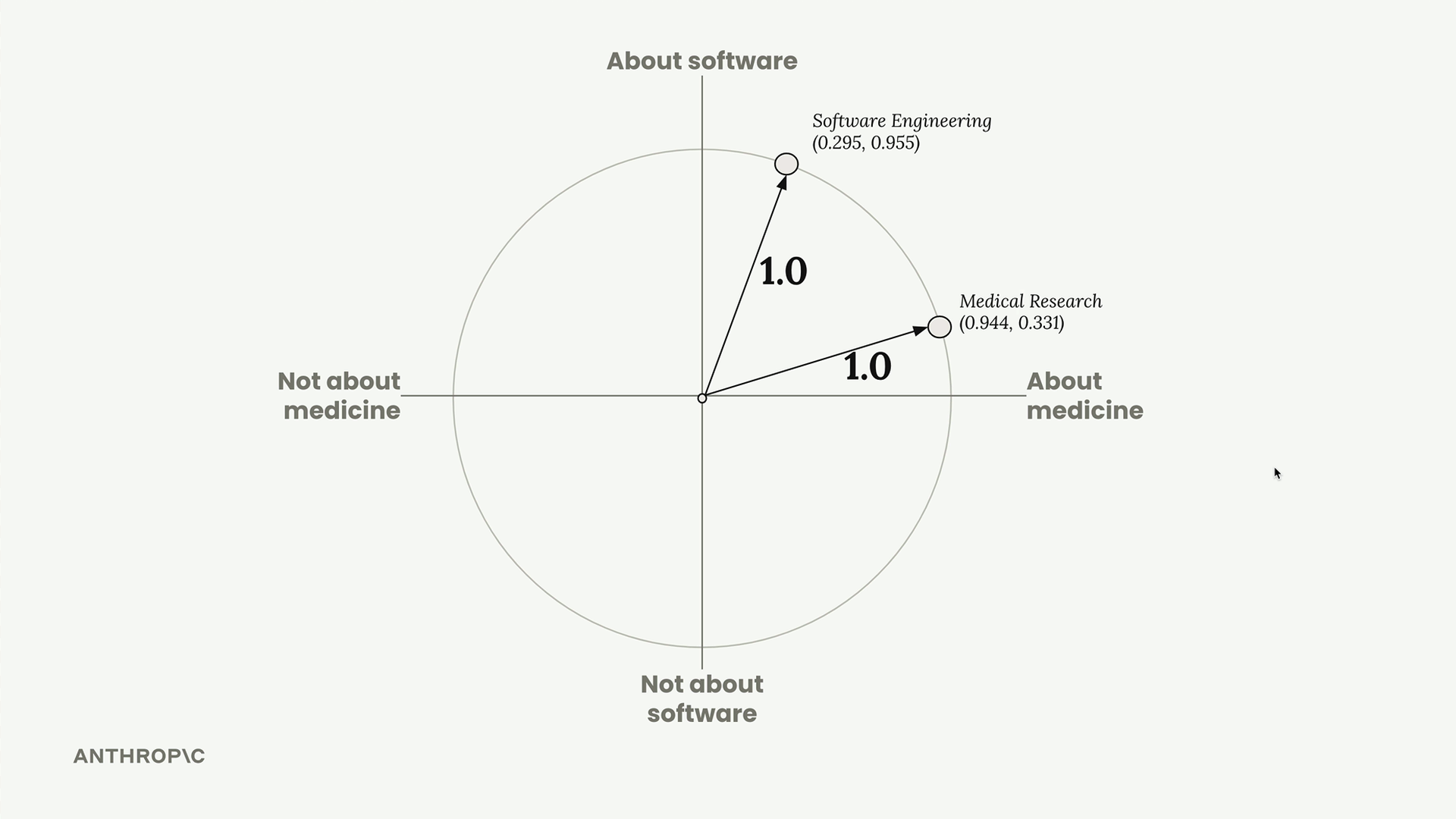
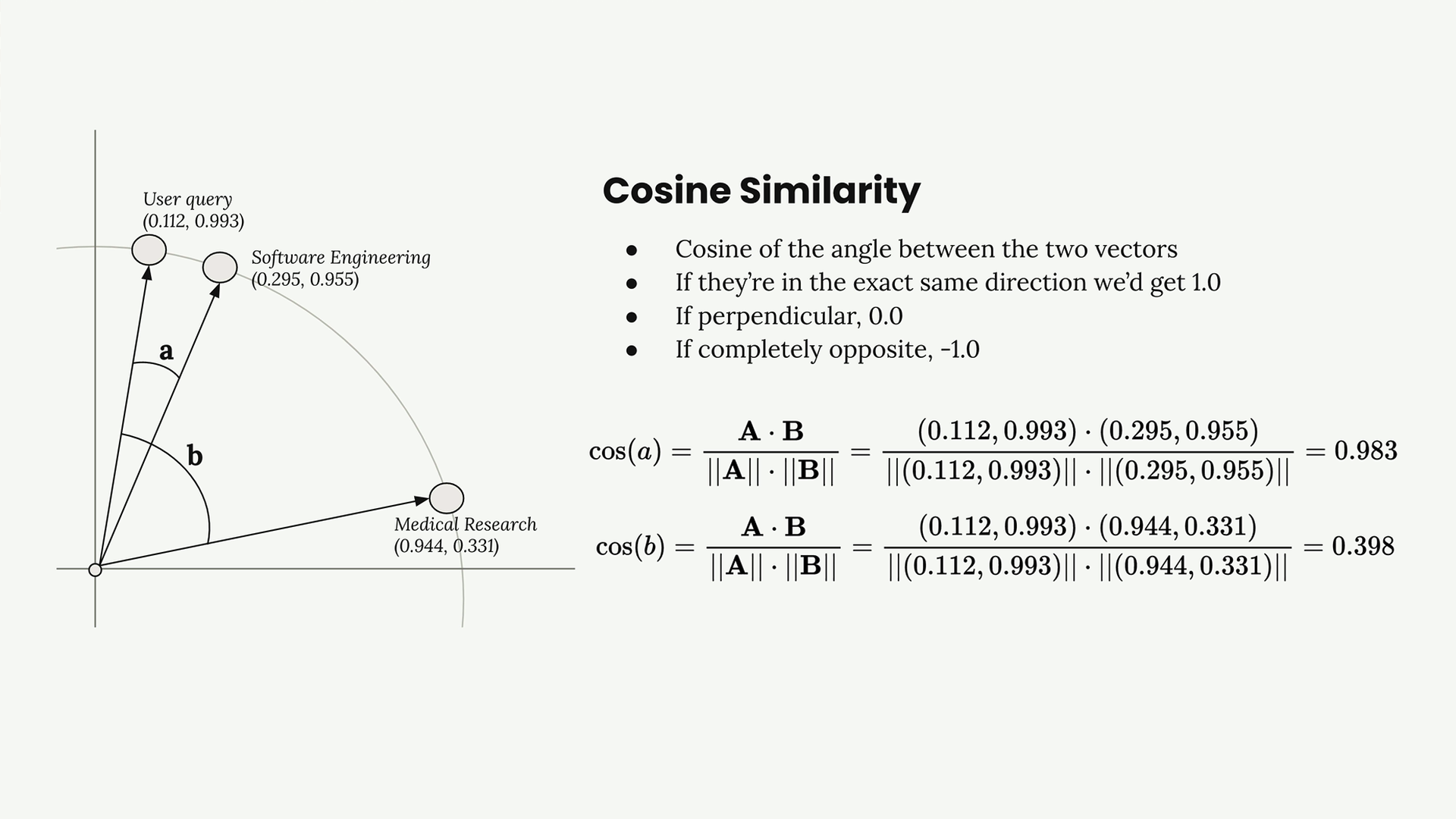
After normalization, our embeddings become [0.944, 0.331] and [0.295, 0.955]. We can visualize these on a unit circle where each point lies exactly on the circle's edge.
Step 3: Store in Vector Database
The normalized embeddings get stored in a vector database - a specialized database optimized for storing, comparing, and searching through long lists of numbers like our embeddings.
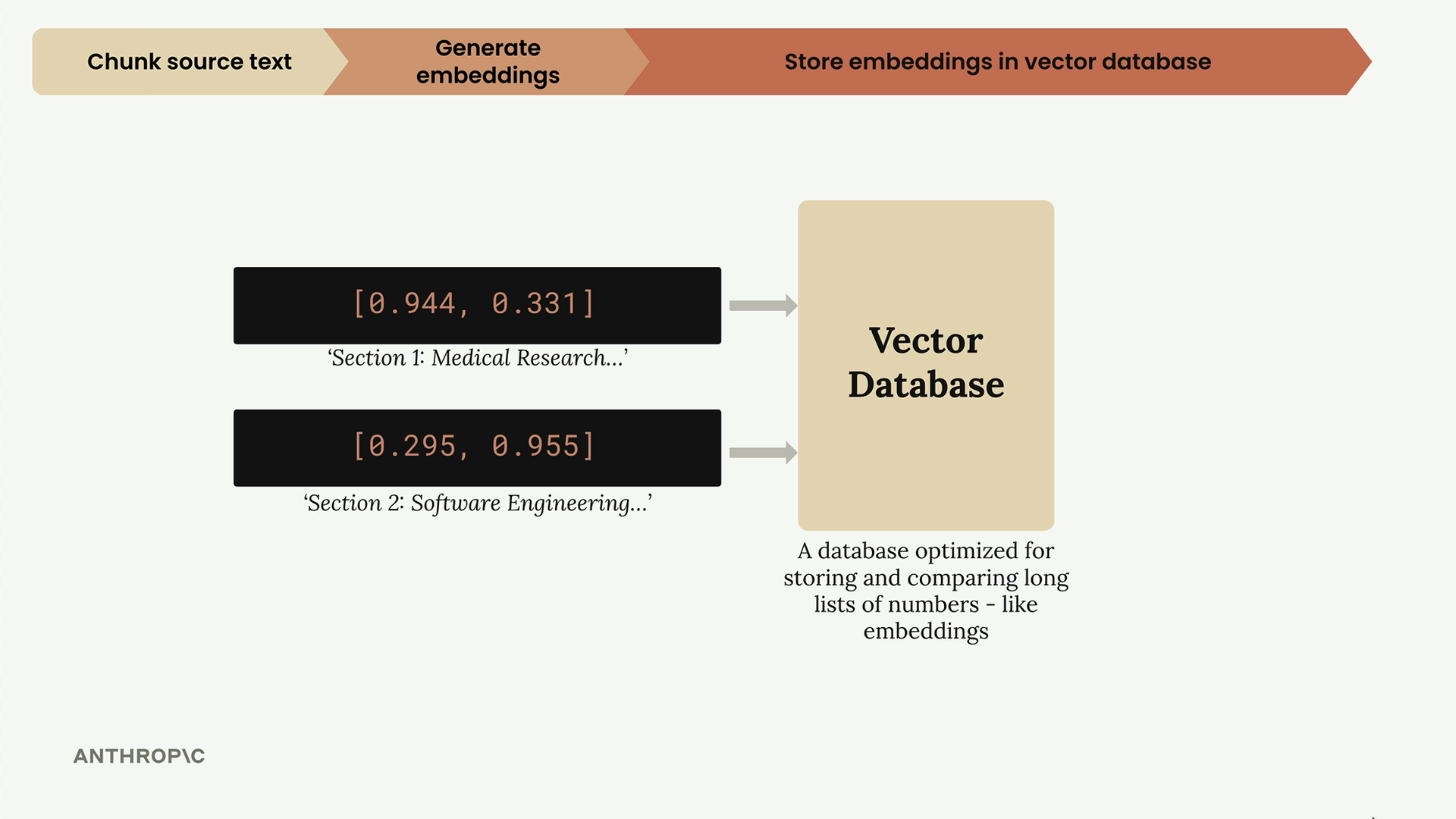
At this point, we pause. All the work so far has been preprocessing that happens ahead of time. Now we wait for a user to submit a query.
Step 4: Process User Query
When a user asks a question like "I'm curious about the company. In particular, what did the software engineering dept do this year?", we run their query through the same embedding model.
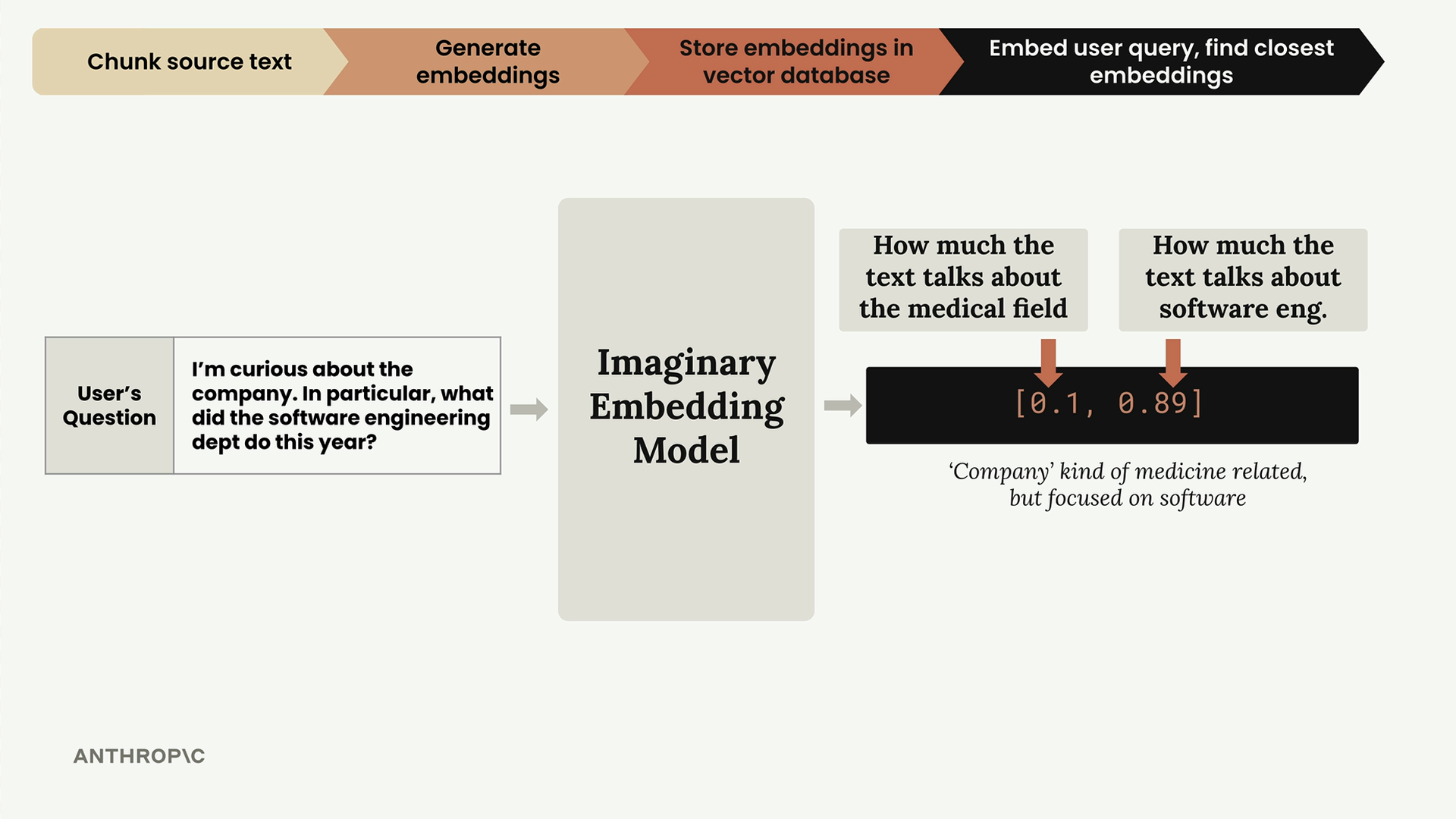
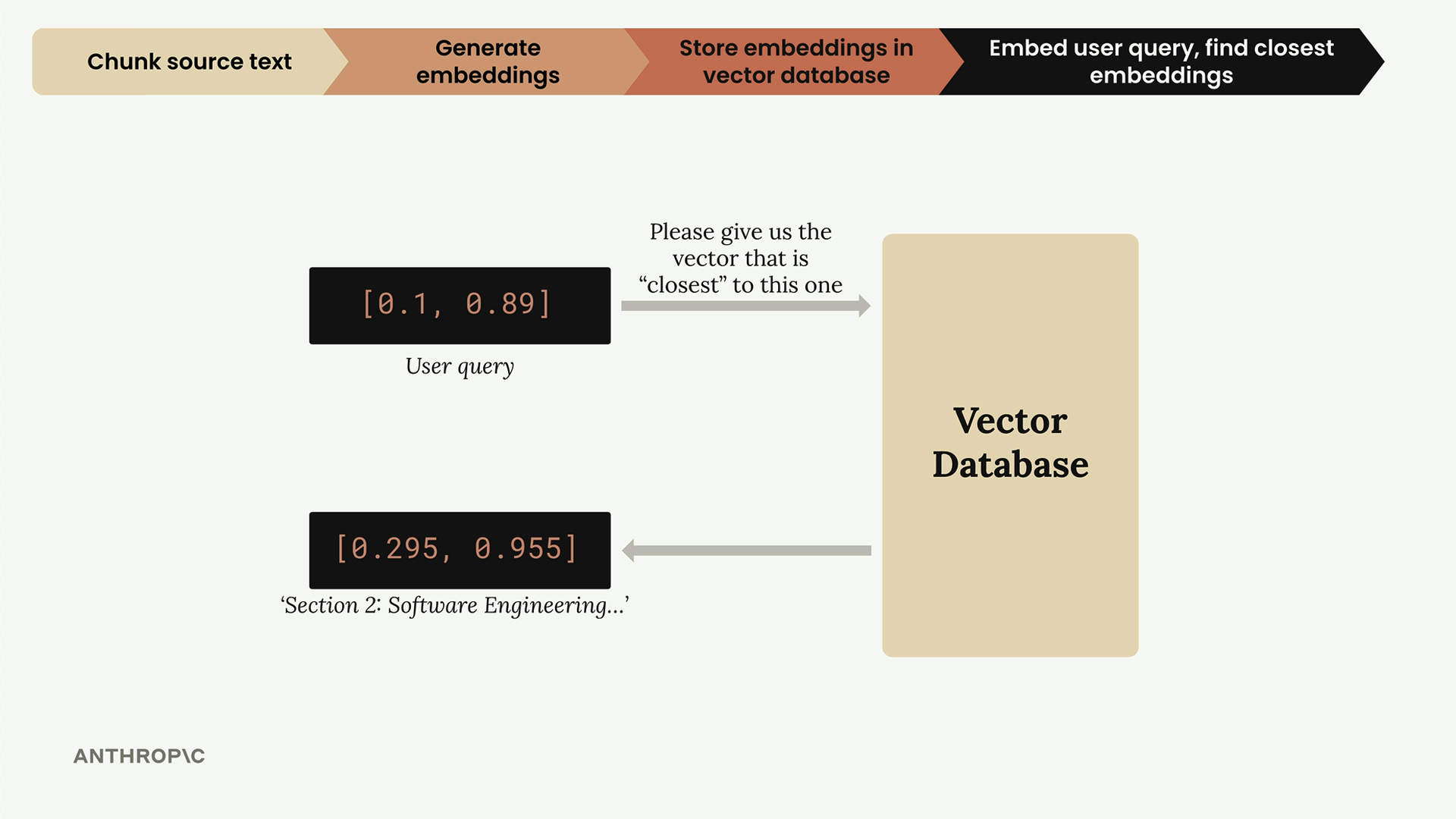
This query gets embedded as [0.1, 0.89] - low medical score, high software engineering score. After normalization, it becomes [0.112, 0.993].
Step 5: Find Similar Embeddings
Now we ask the vector database: "Find the stored embedding that's closest to this user query embedding." The database returns the software engineering section because it's the most similar.
How Similarity Works: Cosine Similarity
The vector database uses cosine similarity to determine which embeddings are most similar. This measures the cosine of the angle between two vectors.
Key points about cosine similarity:
- Results range from -1 to 1
- Values close to 1 mean very similar
- Values close to 0 mean perpendicular (unrelated)
- Values close to -1 mean completely opposite
The calculation uses the dot product formula: cos(a) = (A · B) / (||A|| · ||B||)
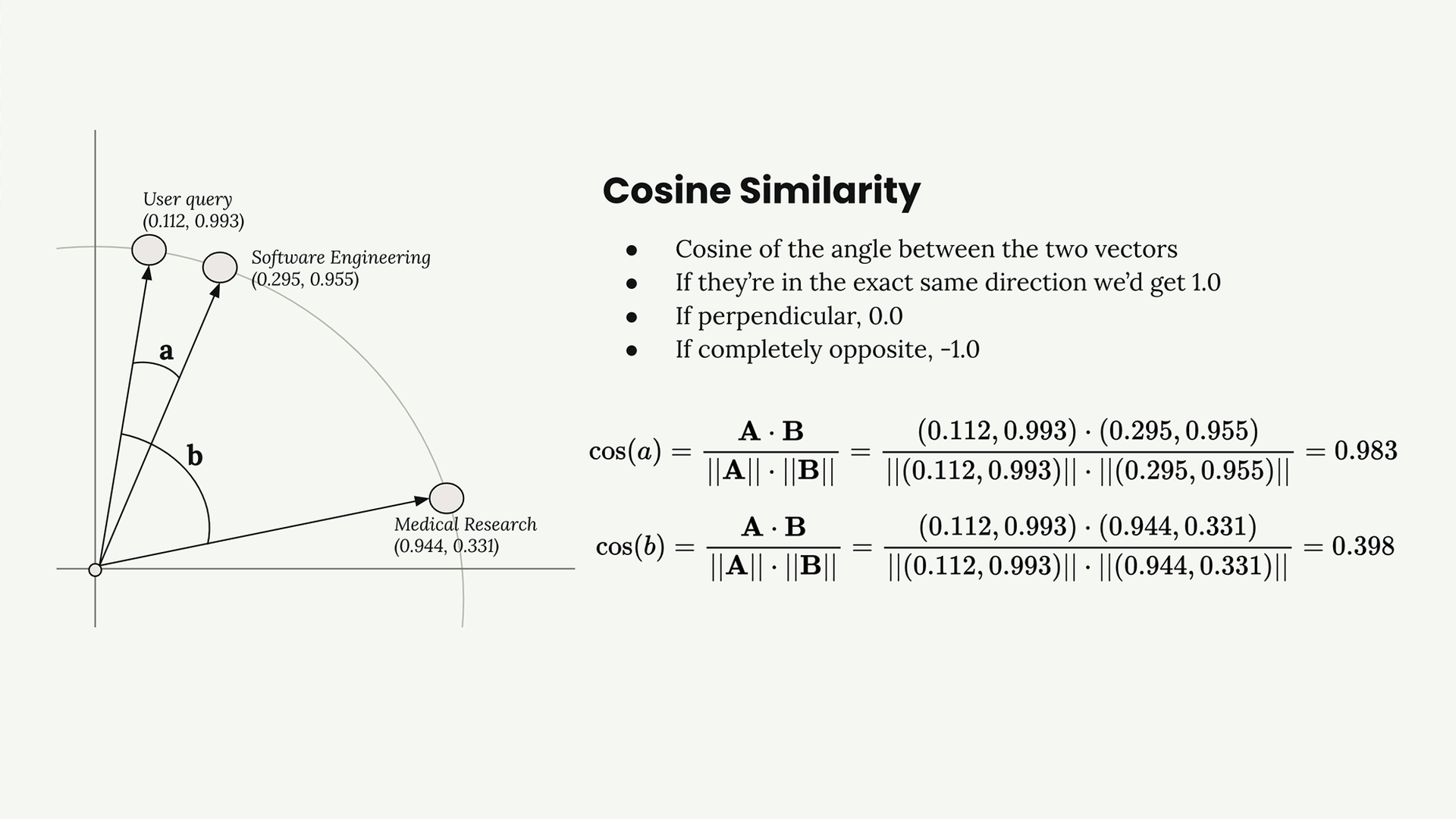
In our example, the user query has a cosine similarity of 0.983 with the software engineering chunk and only 0.398 with the medical research chunk. The software engineering chunk is clearly the better match.
Cosine Distance
You'll often see "cosine distance" in vector database documentation. This is simply 1 - cosine similarity, which gives us an easier-to-interpret number where:
- Values close to 0 mean high similarity
- Larger values mean less similarity
Step 6: Build the Final Prompt
Finally, we take the user's question and the most relevant text chunk we found, then combine them into a prompt for Claude:
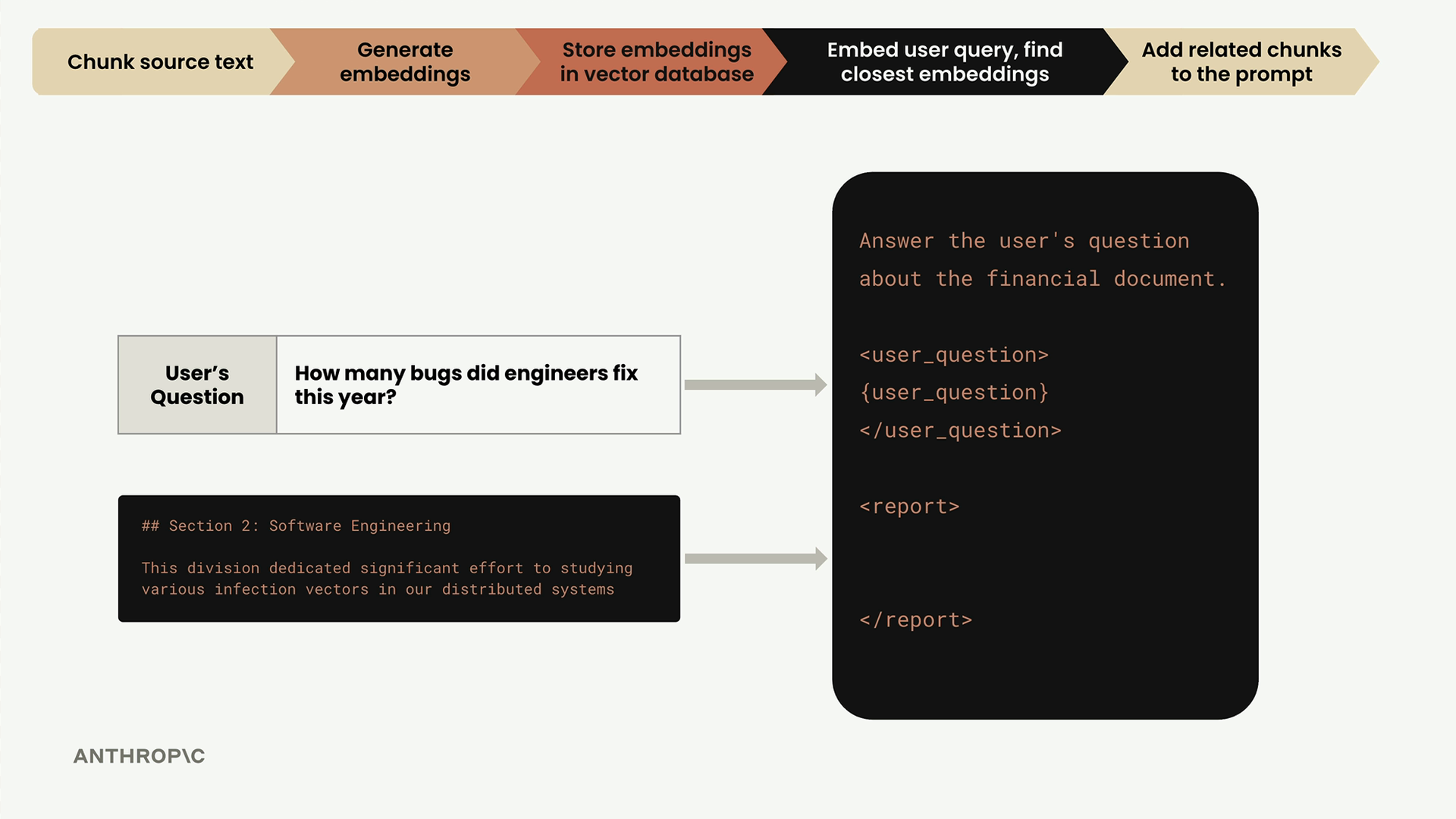
The prompt includes both the user's question and the relevant context from our document, allowing Claude to provide an informed answer based on the specific information in our knowledge base.
The Complete Flow
That's the entire RAG pipeline from start to finish:
- Chunk source documents
- Generate embeddings for each chunk
- Store embeddings in a vector database
- When a user asks a question, embed their query
- Find the most similar stored embeddings using cosine similarity
- Add the relevant chunks to a prompt with the user's question
- Send the enhanced prompt to Claude for a response
Understanding this process and the math behind it will help you work effectively with vector databases and debug issues when your RAG system isn't returning the results you expect.