Running multiple instances of Claude Code in parallel is one of the biggest productivity gains you can achieve. Since Claude is lightweight, you can easily spin up several copies, assign each a different task, and have them work simultaneously. This effectively gives you a team of virtual software engineers working on your project.
The Challenge: File Conflicts
The main problem with parallel instances is that they might try to modify the same files at the same time. This can lead to conflicting or invalid code since each instance isn't aware of what the others are doing.
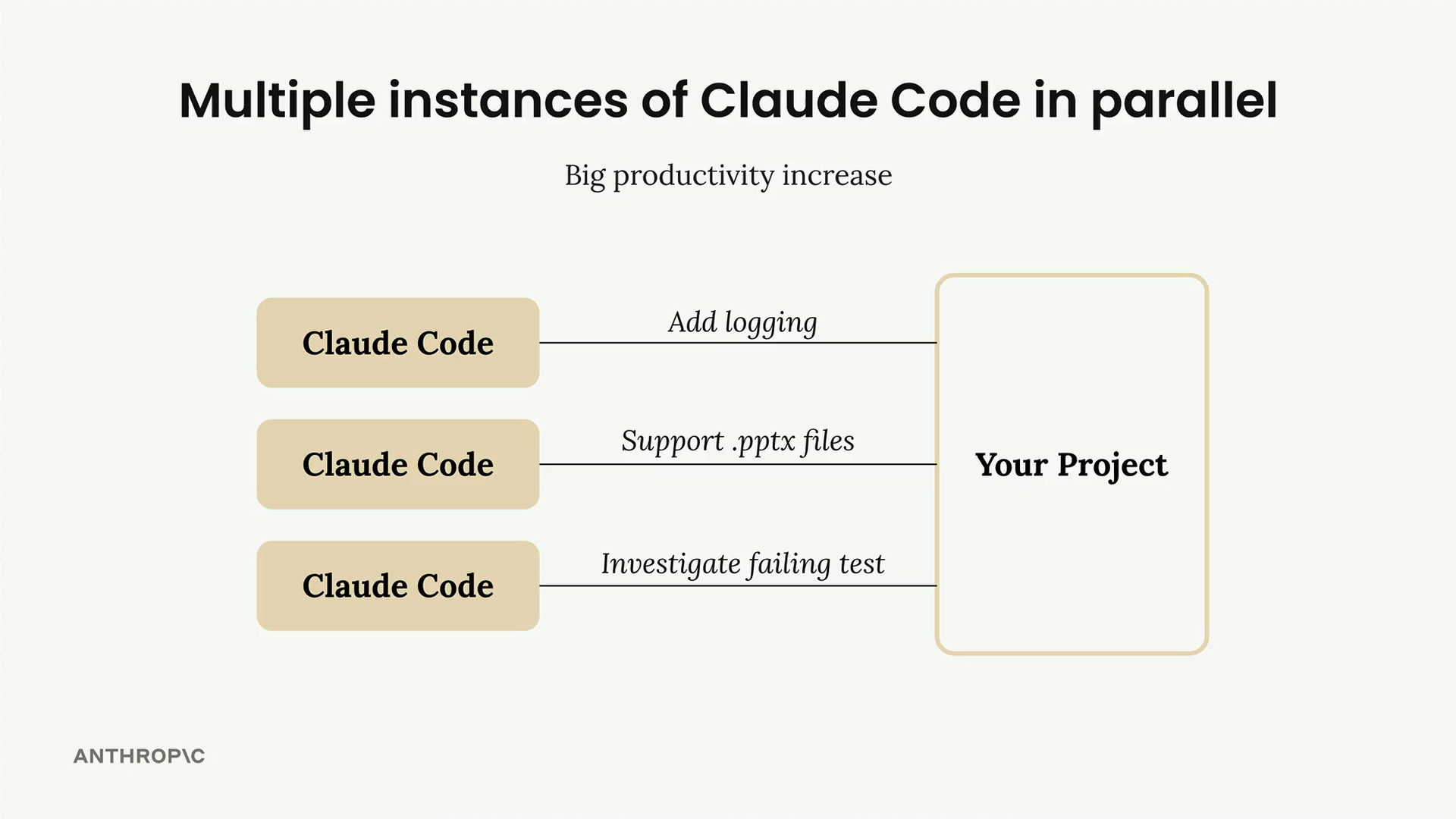
The solution is to give each Claude instance its own separate workspace. Each instance works with its own copy of your project, makes changes in isolation, and then merges those changes back into your main project.
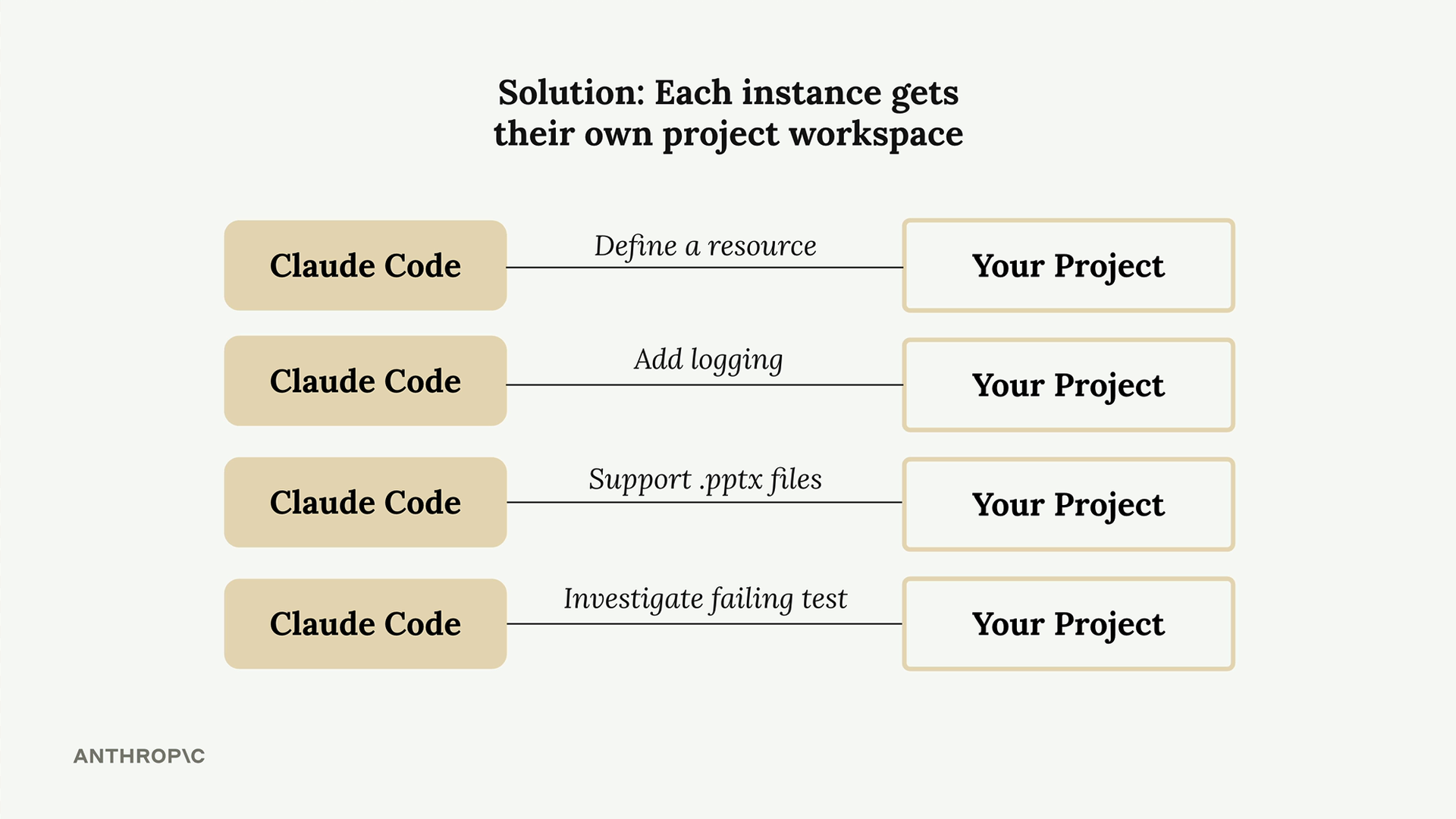
Git Worktrees
Git worktrees are perfect for this workflow. If your project is already managed by Git, you can use worktrees immediately. They're like an extension of Git's branching functionality that lets you create complete copies of your project in separate directories on your machine.
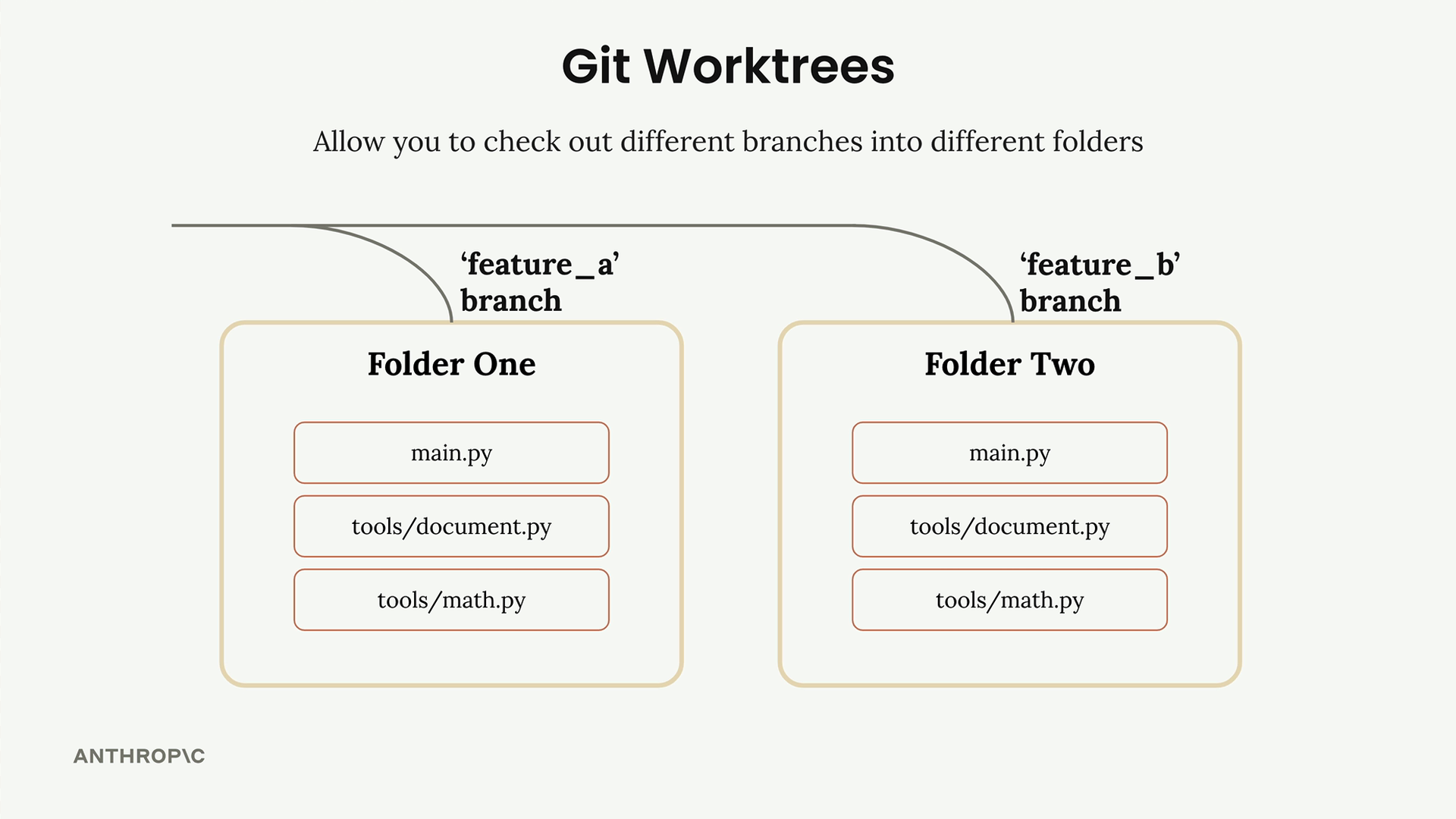
Each worktree corresponds to a separate branch. You can have one folder for feature A and another for feature B, each containing a complete copy of your codebase. Then you run separate Claude Code instances in each worktree, working in total isolation.
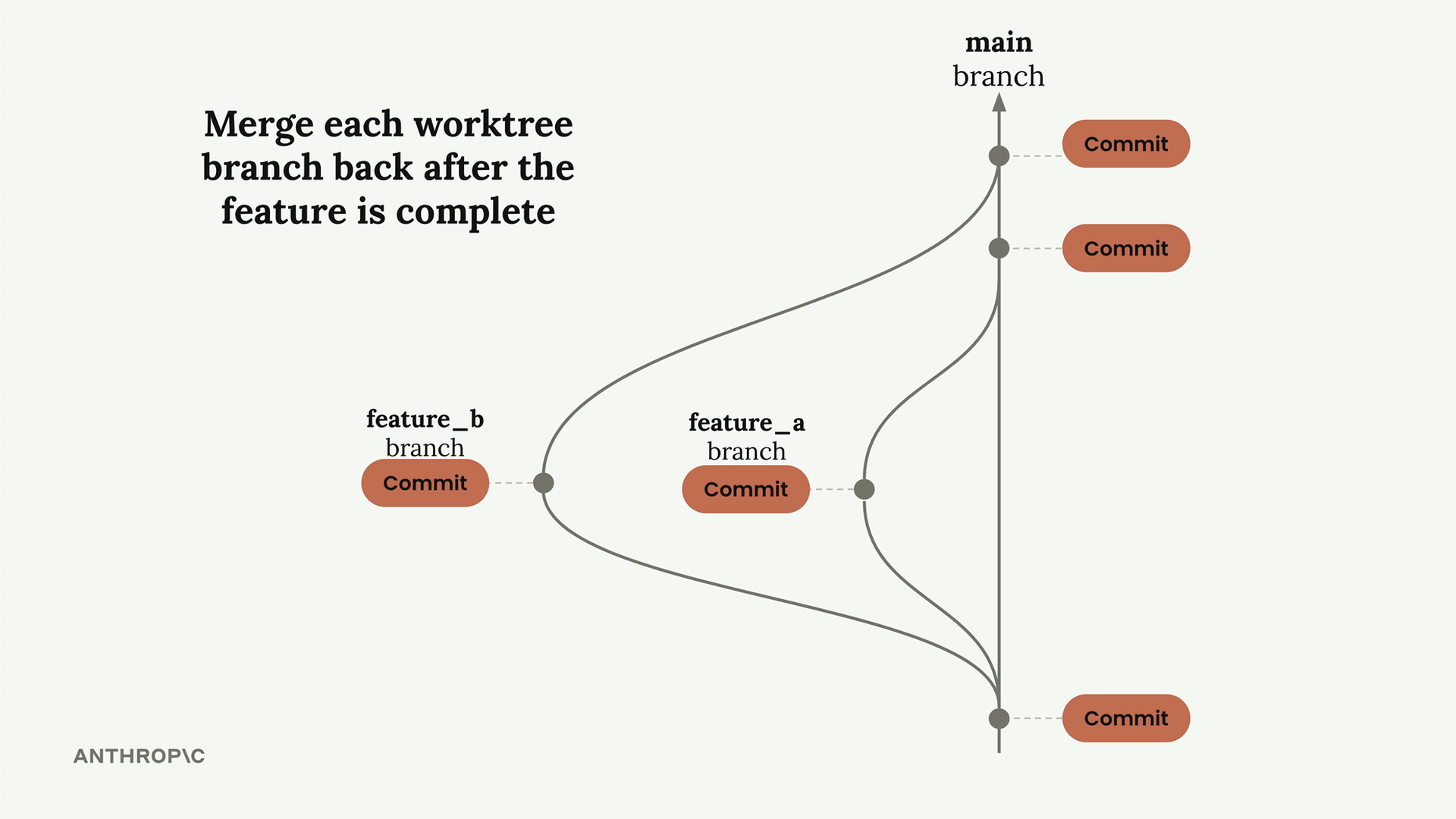
Once each Claude instance finishes its feature, you commit the work and merge it back into your main branch, just like merging any normal Git branch.
Automating Worktree Creation
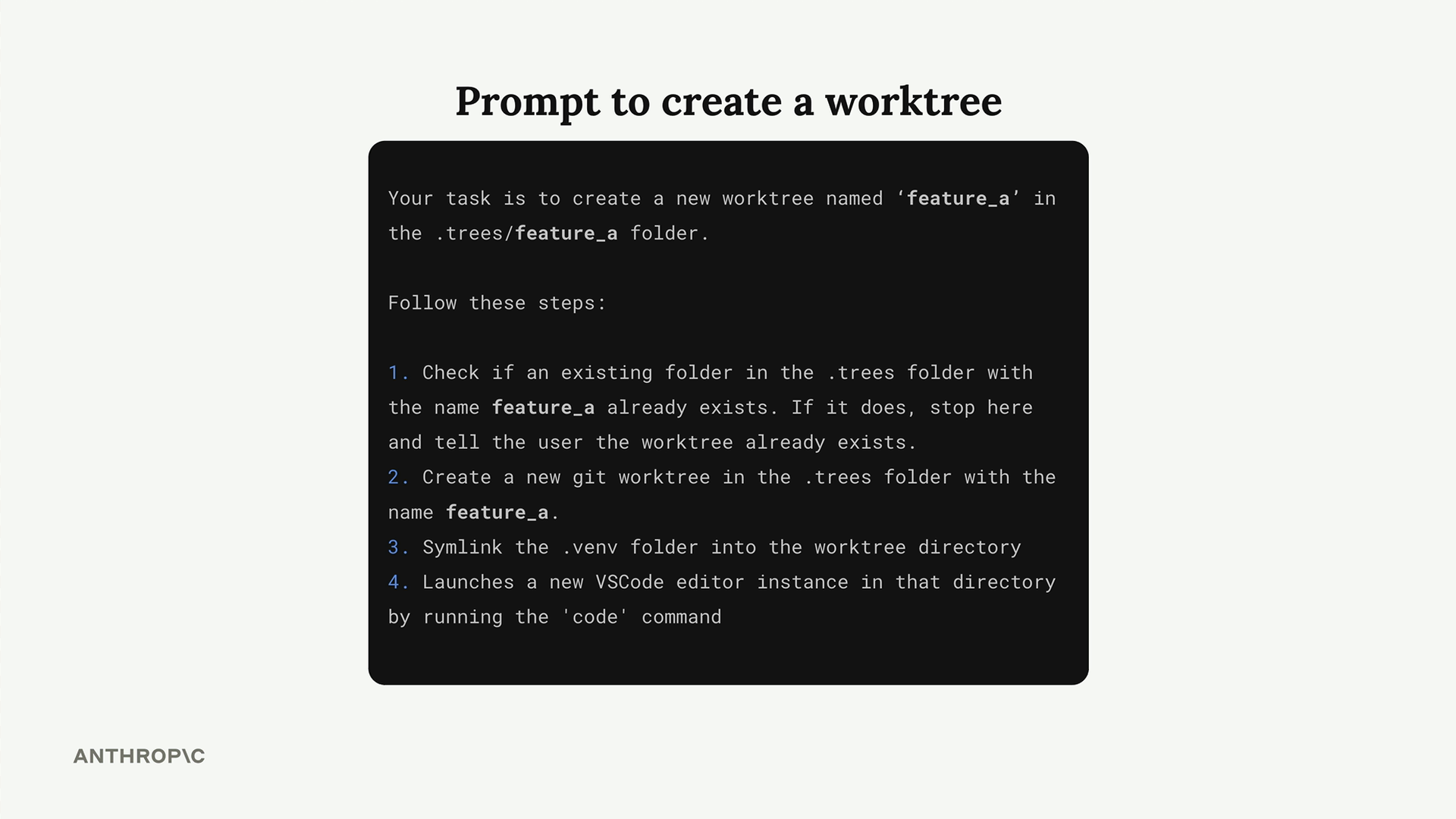
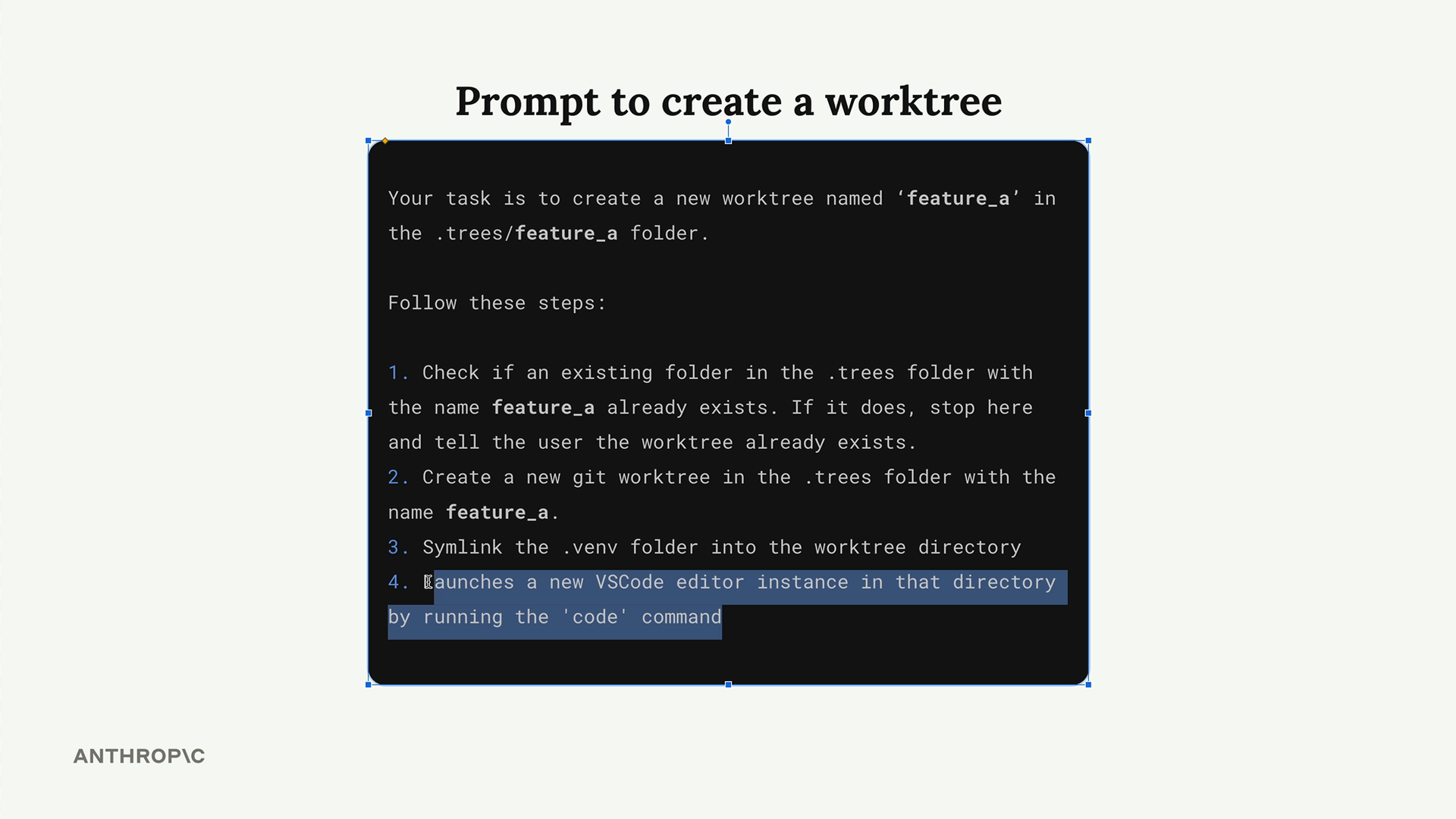
This might sound complicated to manage, but you can delegate the entire workflow to Claude Code itself. You can write a prompt that asks Claude to:
- Create a new git worktree in a specific folder
- Symlink dependencies that aren't tracked by Git
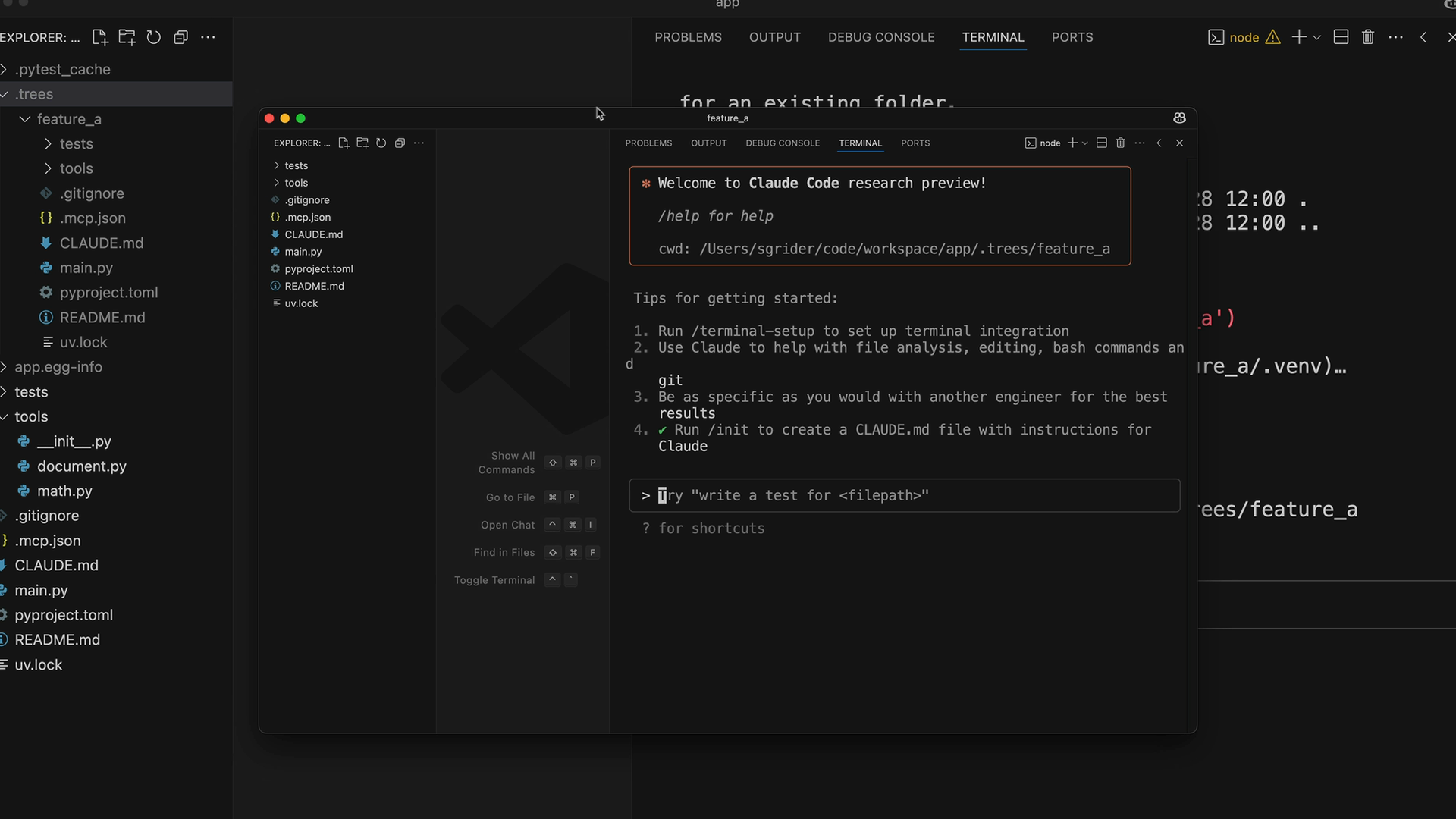
- Launch a new VS Code instance in that directory
Custom Commands
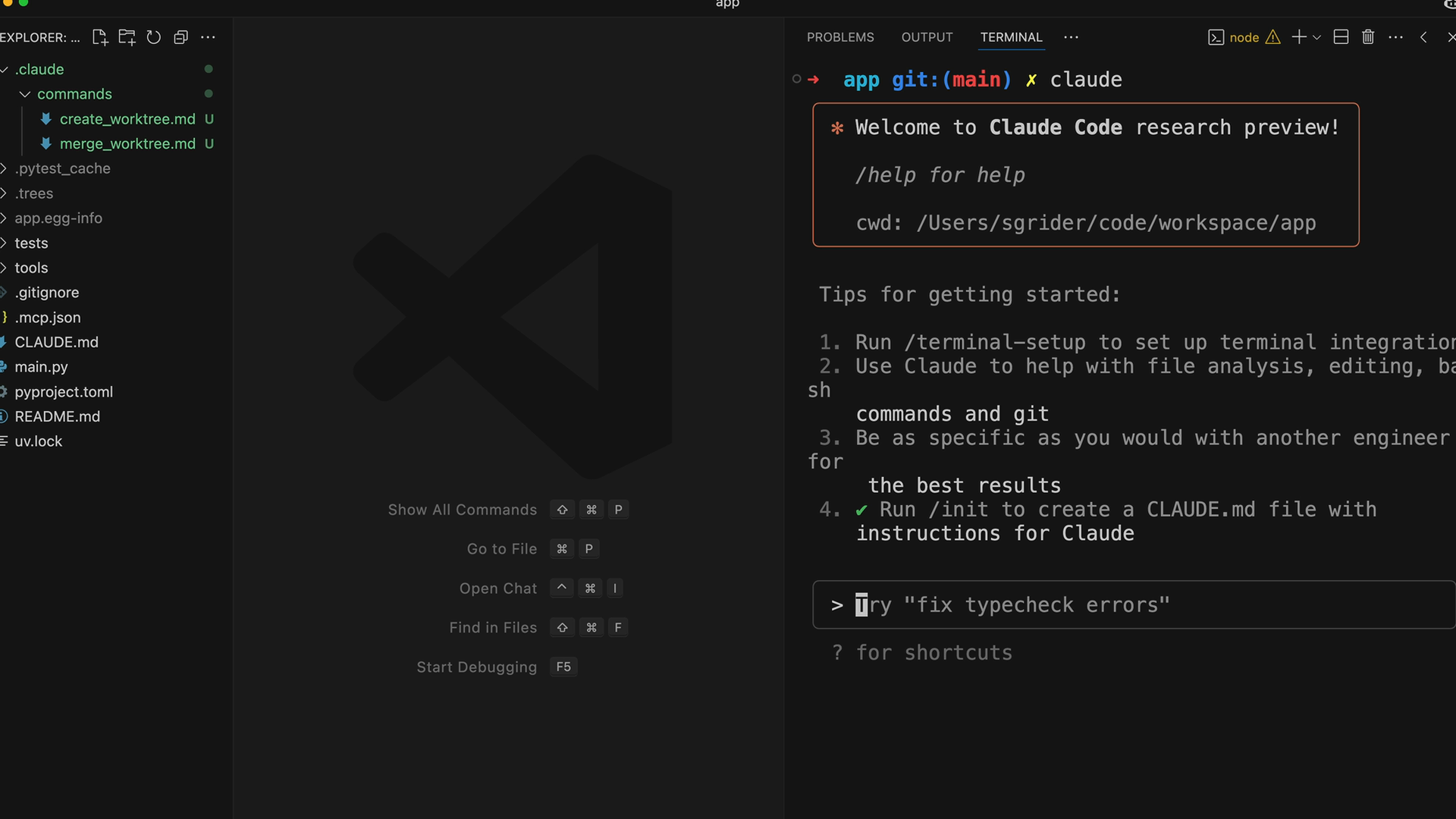
Rather than copying and pasting long prompts every time, you can create custom slash commands in Claude Code. Add a .md file to .claude/commands to create a custom command.
The custom command can reference $ARGUMENTS, which gets replaced with whatever arguments you pass to your command. For example:
/project:create_worktree feature_acreates a worktree named "feature_a"/project:create_worktree developcreates a worktree named "develop"
Parallel Development in Action
Here's how the complete workflow looks in practice. You can create multiple worktrees for different features:
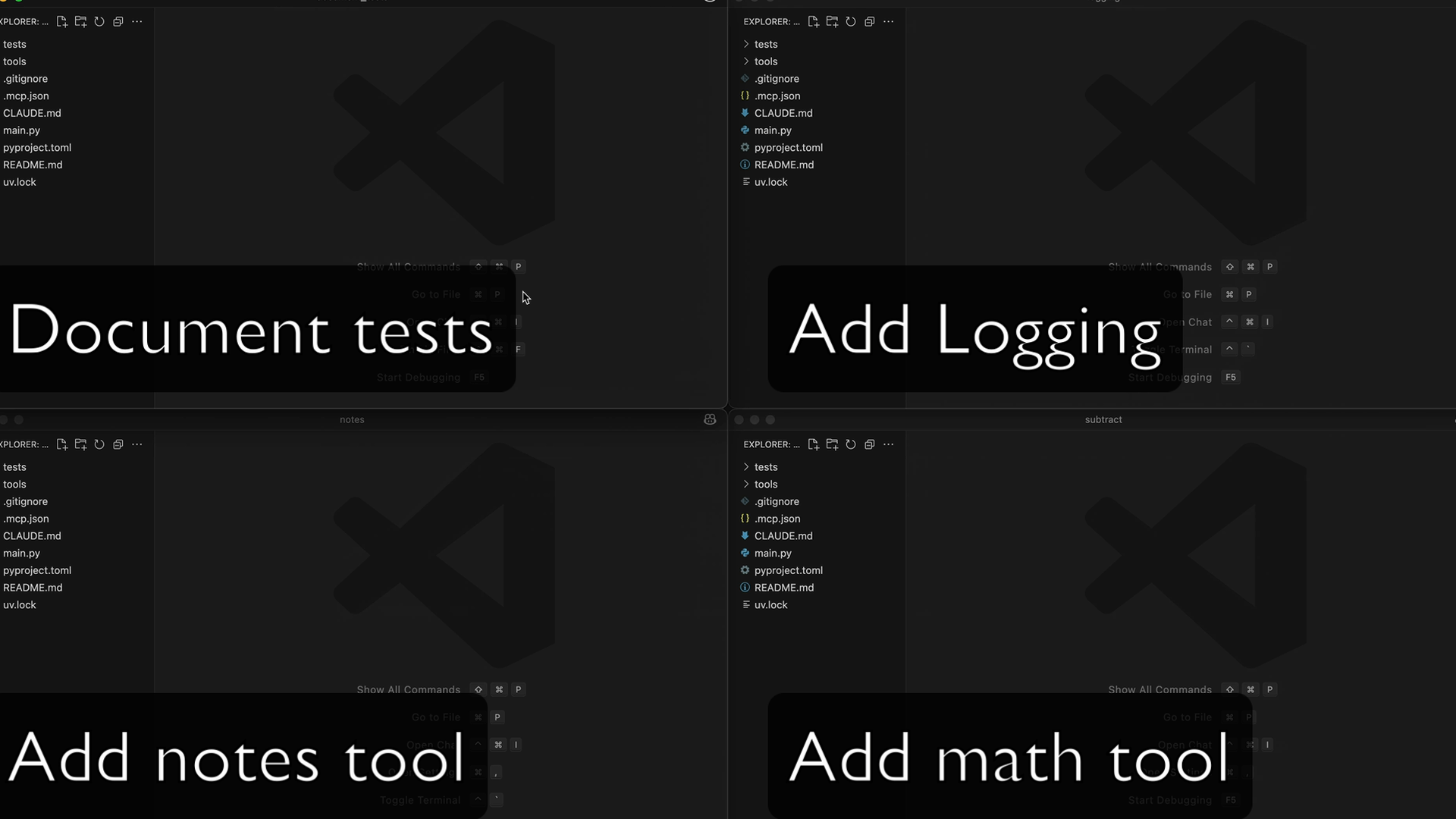
Each Claude instance works on its assigned task:
- Update document tests
- Add logging
- Add note-taking tools
- Add a subtract tool
Merging Changes
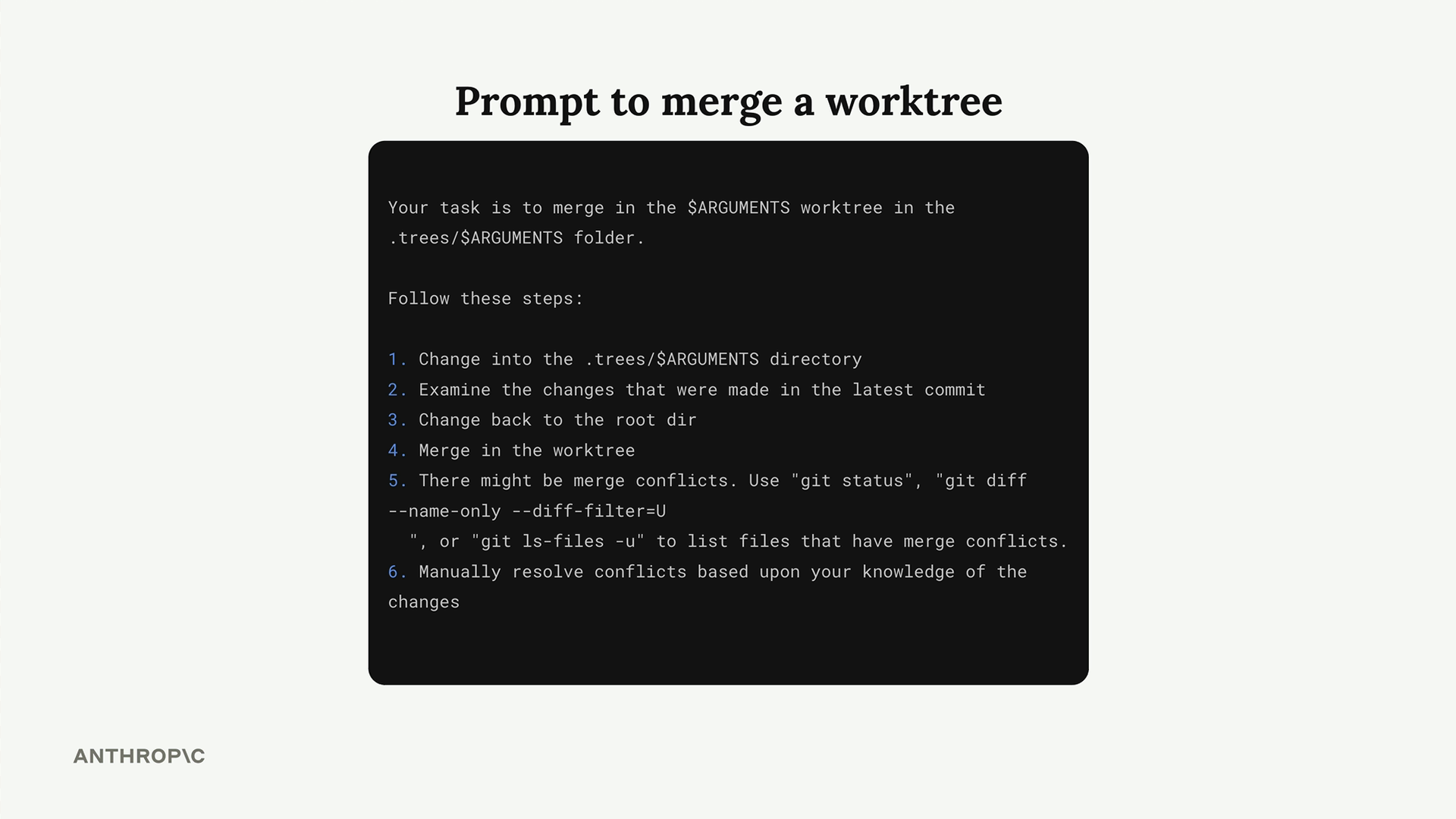
When the features are complete, you can automate the merge process too. Create another custom command that tells Claude to:
- Change into the worktree directory
- Examine the latest commit
- Change back to the root directory
- Merge the worktree branch
- Handle any merge conflicts automatically
Claude can even resolve merge conflicts automatically based on its understanding of the changes made in each branch.
Results
This approach scales to as many parallel instances as you can manage. Instead of working on features sequentially, you can have multiple Claude instances developing different parts of your project simultaneously. It's like having your own team of developers, each working in their own isolated environment before bringing their work together.
The productivity gains are substantial - you're essentially multiplying your development capacity by the number of parallel instances you run.