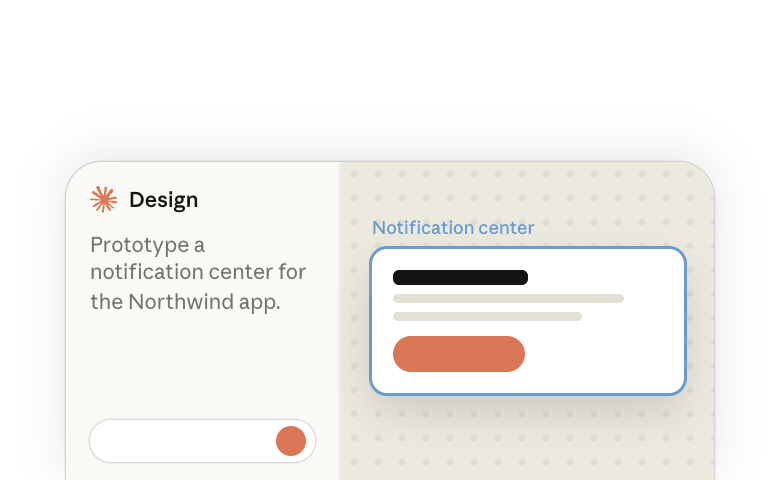
A feature idea is easier to judge when people can click through it. With Claude Design, you describe the feature in a conversation and Claude builds a prototype your team can open and try. If Claude has your design system, it builds the prototype from your own components, like your product's real buttons and forms.
1. Start a design
You can start a design from wherever you work with Claude.
- In any conversation: ask for a prototype, a mockup or a set of screens, on the web or in the desktop app.
- From the sidebar: open Artifacts, choose Design under Make something new, and describe what you want in the conversation that opens.
- In Claude Code, inside your repository: ask the same way. There, Claude can also read your product's code, as section 3 explains.
The design opens beside the conversation on a canvas you can pan and zoom. Each screen sits on its own artboard. The design is saved under Artifacts, and other people can't open it until you share it.
2. Prototype the feature
Here are some kinds of prototypes you can ask for, with prompts to try.
A new feature
Describe the screen, its sections and how they behave.
- "Design a new settings page for our SaaS app with sections for account, billing, notifications, and integrations. Include a sidebar nav and make each section expandable."
- "Prototype a search experience with filters, faceted results, and a detail panel that slides in from the right when you click a result. Make it clickable."
- "Build an approval workflow UI where managers can review, comment on, and approve or reject submitted requests in a queue."
Alternatives for a design review
Ask for each approach on its own artboard. You and your reviewers can then compare them side by side.
- "Show me three different layouts for a user profile page: one card-based, one with a left sidebar, and one with top tab navigation. Put each on its own artboard."
- "Create two versions of this checkout flow on separate artboards, one single-page and one multi-step, so I can compare them in a design review."
A whole flow
Describe the journey step by step.
"Map out the flow for a user who wants to upgrade from a free plan to a paid plan. Start from the dashboard where they see the upgrade prompt, through the plan comparison page, payment form, confirmation, and the updated dashboard with premium features unlocked."
Internal tools and admin panels
Claude Design works well for internal tools, like admin panels and moderation queues. People can click through the prototype and see whether the steps work before the screens are polished.
"Design an admin panel for managing user accounts: a searchable table with filters for plan type and status, and a detail drawer that shows account history and lets you modify permissions."
Claude may not have every fact, such as your real pricing. It may ask you, or make an assumption. Always review Claude's work and check the details before you share the design. To learn more about evaluating Claude's output, read How people check Claude's work(opens in new tab), our education report.
3. Build with your own components
Claude can build a prototype with your real components, the same buttons and forms your product already uses. The prototype then matches what engineers will build. Without your components, Claude draws its own version that only looks similar.
You can get a prototype that matches your product in either of these ways:
- Set up a design system (recommended): a design system keeps your colors, type and components in one place in Claude. Once your organization has set a default, Claude uses it for any design your team starts. See Setting up a design system in Claude(opens in new tab).
- Work from Claude Code in the repository: ask for the design from a Claude Code session inside your project. Claude can read the code and pick up the colors, type and spacing your product already uses. This needs no setup.
Whichever you choose, these habits help:
- Name components in your prompts: "use the ProductCard component" or "follow the same layout as the settings page" tells Claude which ones to use.
- Point Claude at the interface code: in a large repository, tell Claude which package or folder holds the components.
- To change a component, ask Claude: your real components appear on the artboard exactly as they are in your code.
- Refresh after the library changes: a design system synced from your code keeps a copy of your components from the last sync. Sync it again after a release.
4. Refine on the artboards
You can change a design yourself, leave a comment for Claude, or ask in the conversation. Changes save as you make them, so there's no Save button.
- By hand: click an element to select it, double-click text to retype it, and drag to move it. Use the toolbar to add text, notes, shapes and new artboards. Properties shows the settings for the element you selected.
- With a comment: to change one element, turn on comments, click the element, write what you want, and keep Send to Claude checked. Claude makes the change and replies in the comment thread.
- By asking: for a larger change, such as a new state or another alternative, ask in the conversation.
For example: "Show how this page handles the empty state, the error state and a loading state. Put each on its own artboard next to the current one."
5. Review it with your team
With Share, you choose who can open the design and whether they can view, comment or edit. People you invite need a Claude account. For the options on each plan, see Share artifacts(opens in new tab) in the Help Center.
What each person can do depends on the access you give them:
- Can view: they open the design, click any element to read its size, spacing and colors, and run a clickable artboard with Play. They can't change anything.
- Can comment: the same, plus comments on the elements they click.
- Can edit: they change the design themselves and add notes on the canvas. People in your organization who can edit can also send a comment to Claude as a request.
People with edit access can work on the canvas at the same time, and you see each other's changes as they happen.
On Team and Enterprise plans, an owner of your organization decides whether you can share outside it. For someone who can't open the link, use Export. You can export:
- One artboard as a PNG, PDF or HTML (.zip) file
- The whole prototype as one web page (HTML), from Share > Export
- Every artboard in one PDF
6. Continue in Claude Code
Claude Code can open a prototype made in Claude Design. An engineer can then build from the actual artboards and the components in them, not from a screenshot.
- If you designed in Claude Code: stay in the same session and ask Claude to build it. To come back later, open the design from Artifacts and use the button next to Share to reopen the session that made it.
- If you designed somewhere else: give the engineer edit access to the design. In Claude Code, inside the repository, they paste the design's link and ask Claude to implement it.
Before you start the build
A few steps make the design easier to build from:
- Name artboards and components clearly: Claude Code reads those names in the design.
- Write down decisions as you make them: if you chose tabs over a sidebar, say why in a note on the artboard, where Claude Code can read it.
- Ask for the empty, error and loading states first: also ask how the screen behaves with very little data and with far more than you expect.
7. An example from idea to implementation
- A PM describes the feature in a conversation. It is a notification center with filtering and bulk actions.
- Claude builds a first prototype from the organization's design system, and a designer refines it on the artboards.
- The PM shares the design for an async review, and the team plays the prototype and comments.
- An engineer opens the design in Claude Code and asks Claude to implement it.
If something looks off
| What you see | What to do |
|---|---|
| You asked for a deck and got artboards with no Present button | Decks are a separate kind of artifact, Claude Slides. Ask for slides or a deck, and Claude can turn a design into one in the same conversation. See Making slides and presentations with Claude(opens in new tab). |
| The prototype doesn't respond to clicks | Press Play above the artboard. If the artboard has no Play button, ask Claude to make it clickable. |
| The screens don't use your real components | Claude doesn't have them yet. See section 3. |
| Claude Design isn't offered anywhere | On Team and Enterprise plans, an owner turns it on(opens in new tab) under Organization settings > Artifacts. |
| A design system you made at claude.ai/design isn't in the + > Design system menu | It has to be migrated first, from the Artifacts page. See Migrate from standalone Claude Design(opens in new tab). |
| Someone can't open the link you shared | On Team and Enterprise plans, an owner of your organization decides whether you can share outside it. Use Export to send them a file instead. See who can open a shared artifact(opens in new tab). |
More resources
- Making slides and presentations with Claude(opens in new tab) for decks.
- Setting up a design system in Claude(opens in new tab) so designs use your components and type.
- Collaborate with your team in Claude artifacts(opens in new tab) for how designs are shared and edited with your team.
- Visit the Help Center(opens in new tab) for more support and troubleshooting.