What artifacts are
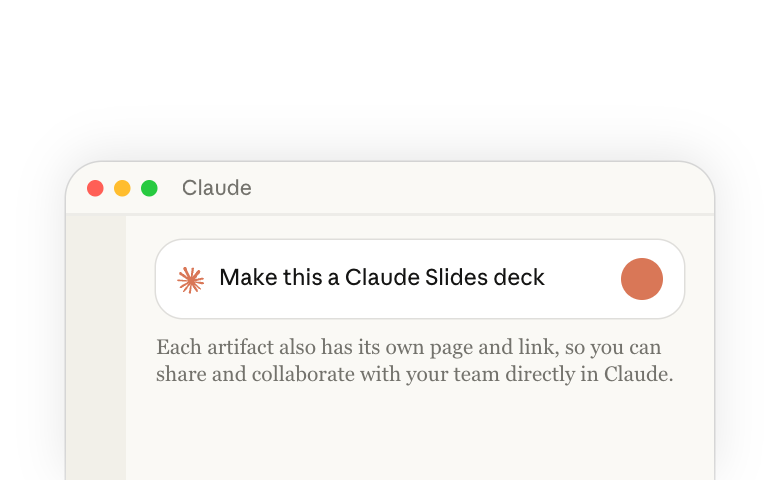
Ask Claude for a document, a slide deck, a design, a dashboard, or an animation, and the result opens in a panel beside your conversation. The work Claude builds this way, and keeps open alongside your chat, is an artifact. Each artifact also has its own page and link, so you can share and collaborate with your team directly in Claude.
Not everything Claude makes beside the chat is an artifact. Claude can also build a file for you to download, or export to other places like PowerPoint or Google Docs. An artifact has a page you can share and edit with teammates right in Claude.
Ask Claude for an artifact
You can specify which kind you want, or describe the work and Claude picks what fits the task. When your work fits none of those kinds, like a tracker or a quiz, Claude builds a custom artifact for it. If Claude makes the wrong one, say which you wanted, for instance "make this a Claude Slides deck" or "give me this as a file for PowerPoint."
For more on each kind, see the Help Center(opens in new tab). To check which kinds your plan has, see What your plan includes.
Build from the conversation
Starting right in the chat where you work, Claude can build artifacts. It can use any information you provide, like your connectors or skills, or what's already in the conversation:
- The conversation itself, when you talk an idea through or brainstorm with Claude first: "Mock up a landing page for the idea we just worked out, in Claude Design, using our design system."
- Files you attach, like meeting notes, a report, or a photo of a whiteboard: "Make a six-slide Claude Slides deck from this report for my leadership team."
- Tools you have connected(opens in new tab), like your drive, calendar, or team chat: "Pull this quarter's numbers from [the tool] into a one-page update for my team, as a Claude Doc."
- Numbers that keep changing: A doc shows the numbers as they were when Claude pulled them, and you can ask again for the latest. For numbers that stay current, ask for a dashboard or custom artifact that reads from your connected tools: "Build a dashboard of this quarter's revenue by region from [the tool]."
Get a better first version
Claude does a better job with more information and context about your work. A few ways to give it that:
- Name the audience and the purpose: "This is for my leadership team, who will use it to set next quarter's budget."
- Show an example: Attach a deck, doc, or screenshot you like and say what to take from it: "Match the structure of this deck, not its colors."
- Use your design system: Once your organization has set up its colors, type, and components in Claude, decks and designs come out on brand.
- Teach Claude your taste once: Put your house style (tone, layout habits, words to avoid) in a skill, so you don't have to repeat it. Save your process for making artifacts explains how.
Edit it yourself or ask Claude
You and Claude work on the same artifact. Change it yourself or ask Claude to, at any point, and pick the way that fits the size of the change.
- A small fix, like a word or a number: In a deck, doc, or design, click into it and type, drag, or resize. In an animation, open Tweaks to retype the on-screen text. It saves as you go.
- A change to one part: Click Comment, click the spot, write the request, and keep Send to Claude checked. In a doc, select the text, add a comment, and mention @Claude.
- A change to the whole thing: Ask in the conversation, for example "Cut this to five slides" or "Restyle this in our design system."
To change a dashboard or a custom artifact, ask in the conversation, or leave a comment with Send to Claude checked. If you've edited a deck or design by hand, say what to keep when you ask Claude for a rework.
Once you have one artifact, build the next from it without explaining the work again, for example "Turn this Claude Doc into a six-slide deck."
Share, collaborate, and export
You can share an artifact and edit it directly with your team, on a page that Claude hosts. Everyone opens the same page and sees the artifact and its comments, not your conversation with Claude. In a doc, deck, or design, people with edit access can work at the same time and see each other's changes as they happen. Claude keeps working on it too, whenever you or a teammate with edit access asks for a change.
Other people can't open an artifact until you share it. To share, click Share at the top right of the artifact and choose what each person can do. People you invite need a Claude account. For every sharing setting and the options on each plan, see Share artifacts(opens in new tab) in the Help Center.
When the work has to leave Claude, export a file in the format the destination needs, like PowerPoint or Google Slides for a deck, Word or Google Docs for a doc, or MP4 for an animation. Open Share or the artifact's title menu and choose Export.
What your plan includes
- Every plan, including Free: you can ask for an artifact and make Claude Docs, Slides, and Design.
- Paid plans (Pro, Max, Team, Enterprise): Claude Dashboards (in beta), saving entries in an artifact, and connecting it to your tools.
- Team and Enterprise: Claude Motion (in beta). An owner of your organization decides which kinds you can use(opens in new tab) and whether you can share outside it.
For the details on each plan, see What are artifacts and how do I use them(opens in new tab) in the Help Center.
See everything you've made in one place
Everything you make is saved on the Artifacts page in the sidebar, wherever you started it, so you can open each one again from any device. You can start an artifact on the web, in the desktop app, in the mobile app, or in Claude Code, and you can edit a doc, deck, or design in the mobile app. From the Artifacts page you can also start a new one by picking the kind you want under Make something new.
Save your process for making artifacts
Using skills(opens in new tab), you can save your format and your checks once, and Claude follows them each time you ask for that work. A skill is a set of instructions for one kind of work, like the Monday status deck or the monthly board update.
To make one, describe your process in a conversation, and Claude writes the skill. Say where the notes or numbers come from, the kind of artifact you want, who reads it, and what you'd check before sending it. For example: "Make a skill for my Monday status deck. Pull last week's updates from [the tool], make a five-slide Claude Slides deck for the team leads, and check each number against its source before you finish."
Where to go next
Start with work you have due this week: ask Claude for a first version, then share it with a teammate.
For more detail, see:
- Decks: Making slides and presentations with Claude(opens in new tab)
- Prototypes: Using Claude for prototypes and UX(opens in new tab)
- Decks and designs that match your brand: Setting up a design system in Claude(opens in new tab)
- Trackers, quizzes, and other custom artifacts: Build and share tools in Claude with custom artifacts(opens in new tab)