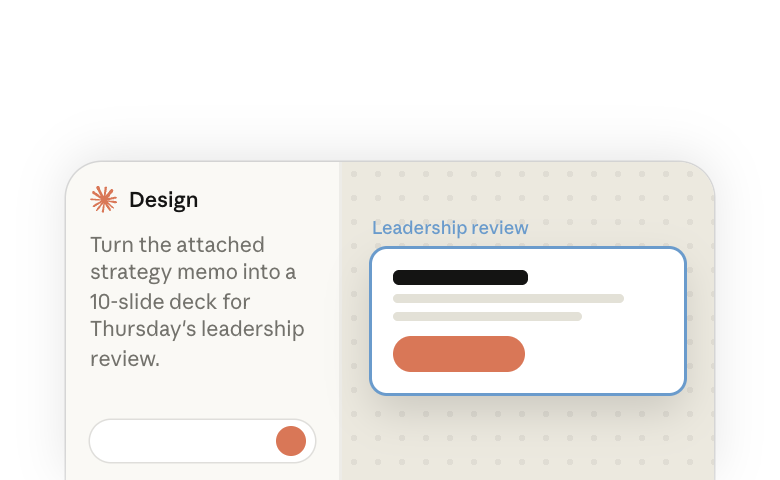
About a third of conversations with Claude produce a written deliverable, like a document or presentation (Anthropic Economic Index(opens in new tab), June 2026). With Claude Slides, you can ask for a deck in any conversation with Claude. It opens beside the conversation, where you can edit it, present it and download it.
1. Ask for a deck
You can ask for a deck in any conversation with Claude(opens in new tab), on the web, in the desktop app, in the mobile app, or in Claude Code.
Before you ask, think about what Claude should know. The more context it has, the better the deck will be. Say what the deck is for and who will read it, then give Claude:
- Information: Attach your files, such as a memo or your meeting notes, or name the project or connected tool they're in.
- Design: Attach a past deck you like, or name your design system.
You can also start without any files. Paste in rough notes, or use dictation or voice mode(opens in new tab) to talk through what you want to say. Ask Claude for an outline, correct it, then ask for the deck.
Here are a few ways to ask:
- From a document or notes: "Turn the attached strategy memo into a 10-slide deck for Thursday's leadership review. Build it around the memo's recommendations, one slide each, and end on the decisions we need from the room."
- From numbers in a connected tool: "Pull Q3 revenue, new customers and churn for my accounts from our CRM and make a quarterly review deck for regional leadership. Keep it to one chart per slide."
- From a deck you already have: "Use last quarter's board update (attached) as the pattern and rebuild it with the Q3 numbers in this spreadsheet. Flag any slide where the story changed direction."
You can also open Artifacts in the sidebar and start a deck under Make something new, then describe it in the conversation that opens.
2. What to expect while Claude builds
When you give Claude a lot of information, it may get straight to work. When your request is shorter, it may ask a few questions first, or share a short outline for you to respond to.
If a fact or figure isn't in your material, Claude is designed to ask you for it, or to leave a visible placeholder on the slide and mention it in its reply.
Always review Claude's work and check the details. Look at the places where Claude made an assumption, and check figures against your source material before you present. To learn more about evaluating Claude's output, read How people check Claude's work(opens in new tab), our education report.
In this example, Claude shares its plan before it builds, then leaves a placeholder for a figure it didn't have:
3. Keep it on brand
Claude can build your deck in your brand's fonts and colors when you have a design system set up in Claude. What to do depends on what you have:
- You have a design system: Claude uses your organization's default. If there is no default, it asks which design system to use. To use a different one for this deck, choose it in the message box under + > Design system before you send the request.
- Your design system is in standalone Claude Design (claude.ai/design): it has to be migrated first. One person can migrate every design system in your organization from the Artifacts page. See Migrate from standalone Claude Design(opens in new tab).
- You don't have one yet: attach a deck or brand file and ask Claude to match its look. To start every future deck on brand, see Setting up a design system in Claude(opens in new tab).
4. Change the deck
You can change the deck yourself, leave a comment for Claude, or ask in the conversation. Changes save as you make them, so there's no Save button.
By hand
Edit a slide the way you would in PowerPoint or Keynote: click to select, double-click text to retype it, and drag to move or resize. Use the toolbar to add text, images, tables and shapes. Properties shows the settings for what you selected, such as font and color.
Use the slide thumbnails to add, reorder or duplicate slides. Skip slide leaves a slide out when you present or download, without deleting it.
With a comment
Use a comment to change one part of a slide. Turn on comments, click the chart or text you want changed, and write your request. Keep Send to Claude checked and post it. Claude makes the change and replies in the comment thread. You need edit access to the deck to send a comment to Claude.
By asking
To change several slides, their order, or the look of the whole deck, ask in the conversation beside the deck. Say which slides you mean, by number or title, and Claude is designed to change only those. For example:
- "Slide 4 is a wall of text. Turn it into a chart and one takeaway line."
- "Cut this to a five-slide version for the executive summary, and move the risks slide ahead of the timeline."
5. Add charts and images
Charts: tell Claude what data to show, or name the file or connected tool it's in, and Claude draws the chart on the slide. The chart shows the data from when Claude built it. If the numbers change, ask Claude to update it.
Images: attach the logos, product shots and photos you want to use, or drop them onto a slide yourself. Claude may not be able to find or create photos for you.
6. Add notes and present
Claude can write speaker notes for you. Ask for them as a script to read from, and you can keep less text on the slides. You can also type your own under each slide. Notes never appear on the slide itself.
Present plays the deck full screen from inside Claude. Once the deck has notes, Present with speaker notes opens a second window with your notes, a clock, and the current and next slides.
7. Share it or download it
Other people can't open your deck until you share it. With Share, you choose who can open it and whether they can view, comment or edit. People you invite need a Claude account. On Team and Enterprise plans, an owner of your organization decides whether you can share outside it. For the options on each plan, see Share artifacts(opens in new tab) in the Help Center.
Teammates with edit access can work in the deck at the same time as you, and the slide thumbnails show who is on each slide.
For someone who can't open the link, download the deck and send the file. With Download, you can save it as:
- Web page (.html), which plays in a browser like Present does and keeps the slide transitions
- Current slide as an image (.png)
- PowerPoint, current fonts
- PowerPoint, basic fonts, which replaces your fonts with ones every computer has
In PowerPoint, you can keep editing text boxes, tables, pictures, slide backgrounds and speaker notes. Charts, icons and shapes become pictures. Slide transitions and skipped slides are left out.
If you've connected Google Drive(opens in new tab), you can also send the deck to Google Slides. Open Share, choose Export, and pick Google Slides under Send to. You get an editable copy in your Google Drive.
If your deck is already a PowerPoint file, Claude can work inside PowerPoint itself. See Building a PowerPoint with Claude(opens in new tab).
If something looks off
| What you see | What to do |
|---|---|
| The deck is generic and misses your points | Claude had little to work from. Give it your notes, the source file or the earlier conversation, and ask again. |
| You wanted a deck you can edit in Claude and got a PowerPoint file | Ask Claude: "Make this a Slides deck." If that doesn't work, check that you can start a deck under Artifacts > Make something new. |
| You wanted a PowerPoint file and got a deck in Claude | Ask for "a .pptx" by name, or open the deck and use Download. |
| Slides isn't offered anywhere | On Team and Enterprise plans, an owner turns it on(opens in new tab) under Organization settings > Artifacts. |
| The deck doesn't look like your brand | Check which design system is selected in the message box under + > Design system. |
More resources
- Using Claude for prototypes and UX(opens in new tab) for screens, flows, and clickable prototypes.
- Setting up a design system in Claude(opens in new tab) so every deck starts on brand.
- Collaborate with your team in Claude artifacts(opens in new tab) for how decks, docs, and designs are shared and edited.
- Building a PowerPoint with Claude(opens in new tab) when your deck is already a PowerPoint file.
- Visit the Help Center(opens in new tab) for more support and troubleshooting.